Turning on SMS CRM for your business
This chapter shows you how to switch on SMS CRM — either for a brand-new business that will use SMS, or as an addition to a business you already have. It explains each screen you will see, what your choices mean, and what to do if the process is interrupted.
Before you start — who this is for
Turning on SMS CRM is always your decision. Nobody can switch it on for you, and it is never switched on silently:
- You must be signed in to the product hub as the account that owns the business (or an admin of it) — for an existing business you need the admin role; for a new business you become its owner/admin automatically.
- Turning on SMS CRM does not start a WhatsApp trial, does not buy a phone number or a bot, does not route you through any Marketing package, and imports no past messages. Your message history is never copied in.
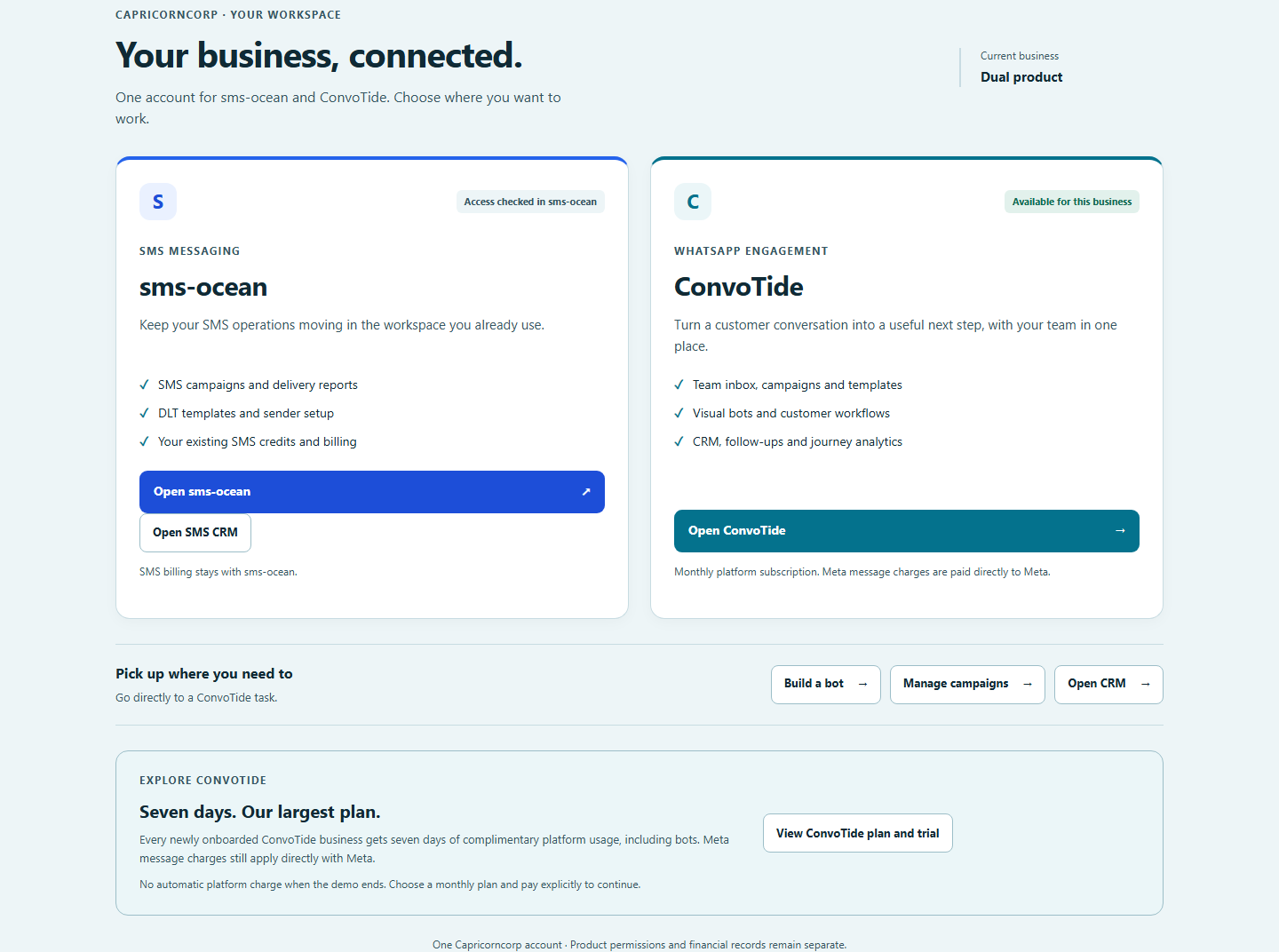
- If you add SMS CRM to a business that already has WhatsApp, everything about the WhatsApp side — its plan, its people, their roles — stays exactly as it was.
Step 1 — open the activation form
Sign in to the product hub (/engage) and choose Activate SMS CRM.
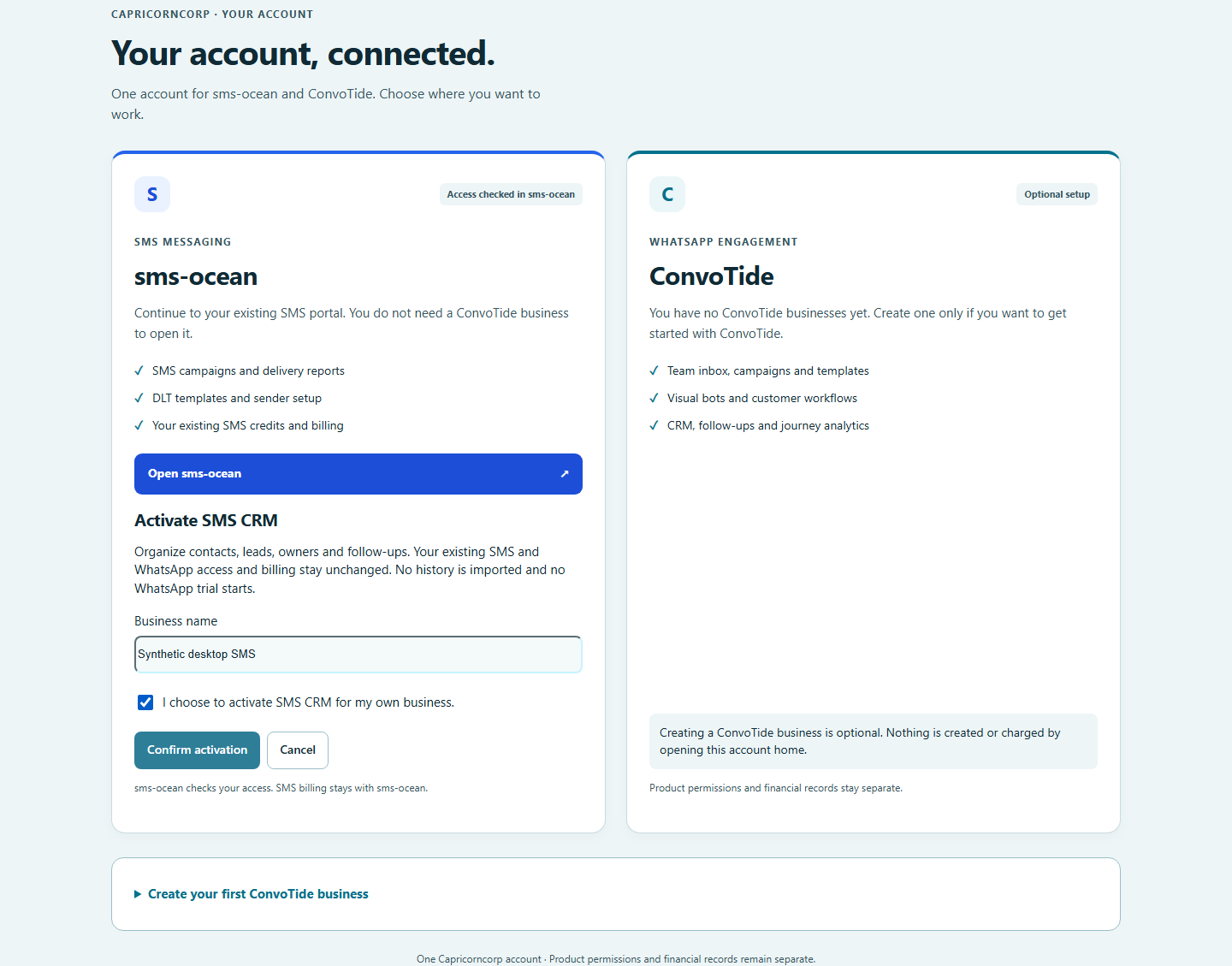
The form uses the same buttons and comfortably sized touch controls as the rest of the workspace, and looks like this on a phone:
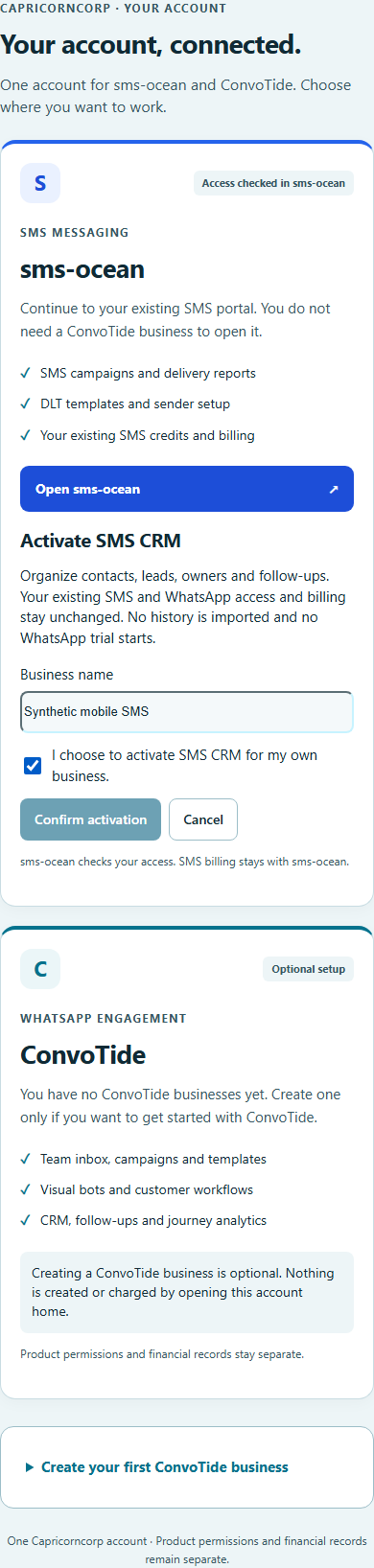
Step 2 — name your business and confirm your choice
What you do depends on which situation you are in:
- Starting a new SMS-only business: type the business name, tick the confirmation that you want SMS CRM, and submit. Your new business is created with you as owner/admin, SMS switched on, WhatsApp switched off, and no trial, plan or history records of any kind.
- Adding SMS CRM to a business you already have: the choice is always explicit — you deliberately pick the existing business from the list and confirm. Only the SMS opt-in is added. Nothing about the business's WhatsApp side changes (in the accepted verification run, the WhatsApp billing record was compared byte-for-byte before and after and was unchanged).
What happens behind the scenes (why you can trust it): before anything is created, the server itself checks who you are, that your account is eligible, and what your role is. This is never decided by your browser — in testing, every attempt to fake an identity or role from the browser was rejected.
Step 3 — if the process is interrupted, simply try again
If your connection drops while you are activating (in the verification run a server hiccup was deliberately triggered at exactly this point), you will see a clear error message. Nothing happens behind your back:
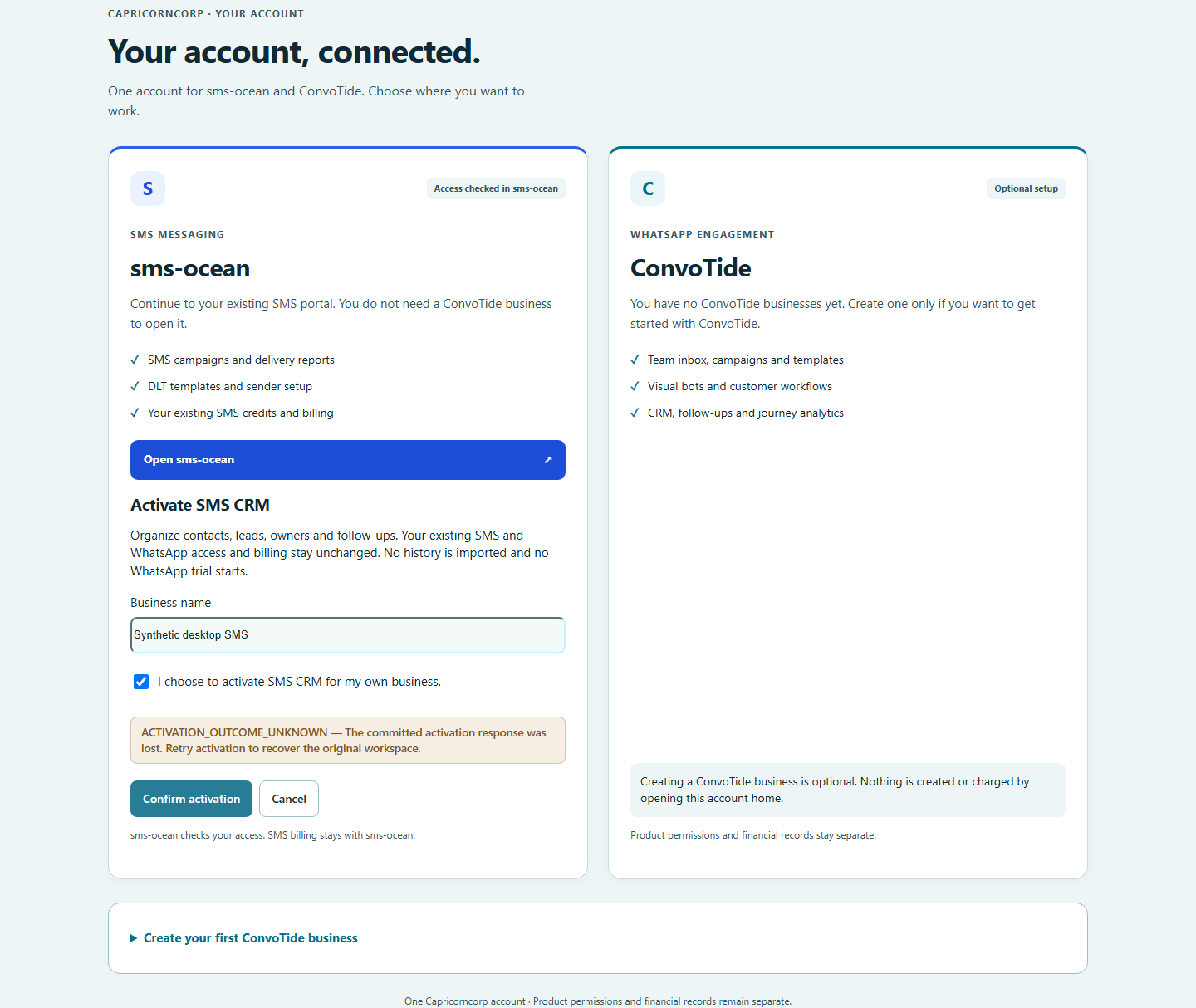
What to do:
- Read the error message.
- Either press the retry button deliberately, or simply reload the page — reloading never re-submits the form on its own.
- Your original business name and the same business choice are recovered for you, so you do not retype anything.
You cannot accidentally end up with two copies of your workspace: the system creates a single, unique SMS binding for your business as part of the process, and uses it as the receipt when you retry. The accepted verification even fired two activation attempts at the same time and still ended with exactly one workspace.
Step 4 — first sign-in as the new owner: set up your second login factor
If you just created a new business, your first sign-in lands you in the CRM in read-only mode until you set up multi-factor authentication (MFA) — that is, an authenticator app on your phone that gives you a login code. This uses the same self-service enrollment you may already know from the product. Until you enroll it, the system will visibly refuse activation attempts and any privileged changes. Once your authenticator is enrolled and confirmed, you can create pipelines, leads and follow-ups normally. (The full first-use journey that starts with no pre-enrolled MFA is described in Entering the CRM from a portal link.)
Step 5 — start working
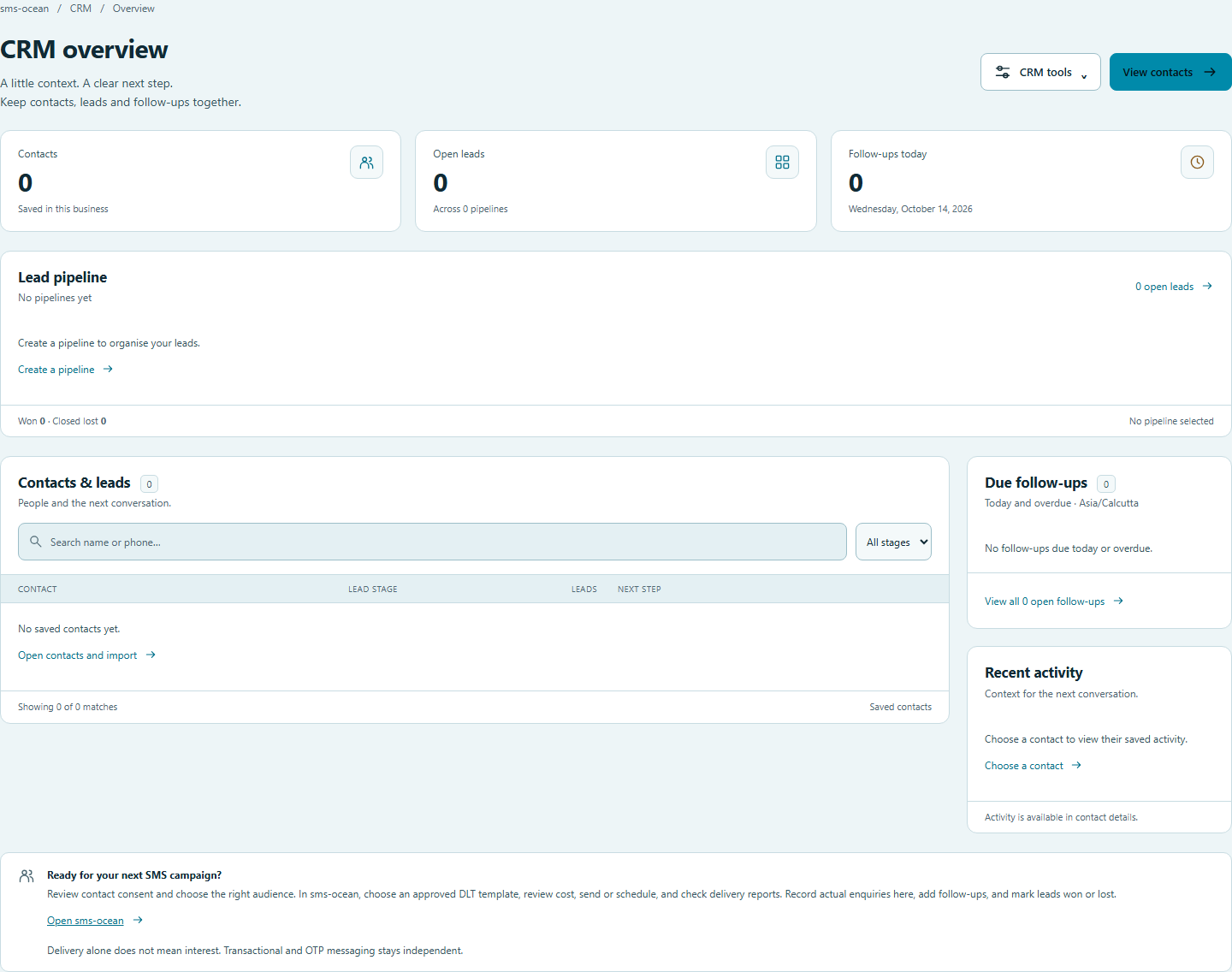
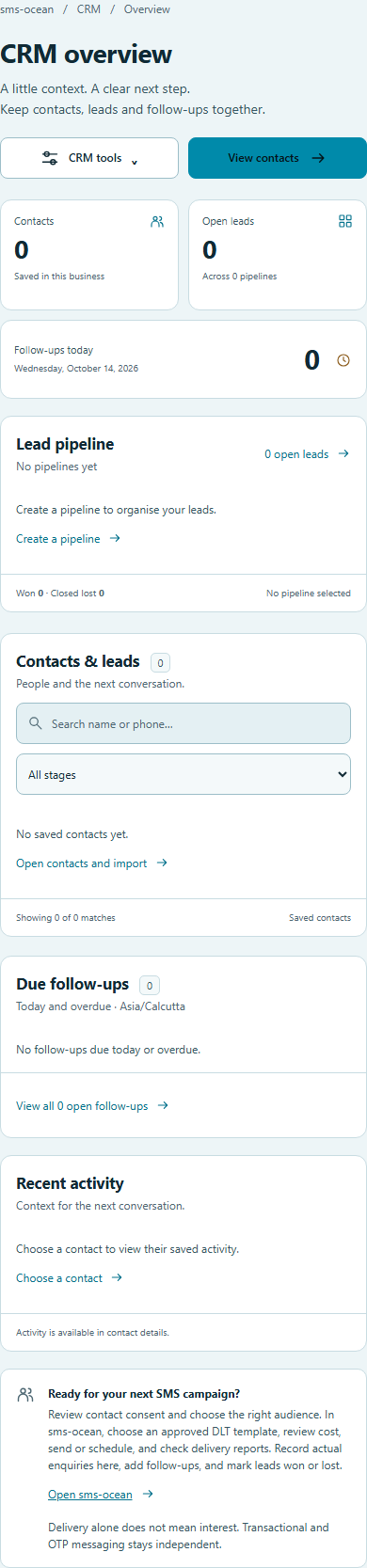
After activation (and MFA on first use), your businesses list shows the SMS CRM entry, and the working CRM opens with its overview screen, contacts, pipelines/leads, owners and follow-ups:
If something goes wrong — what is refused, and what that means
Each of these situations is stopped before anything is created or changed, so a refusal never leaves you in a half-done state:
| What you did / what happened | What it means | What to do |
|---|---|---|
| You did not tick the opt-in confirmation | Activation cannot proceed without your explicit yes | Tick the confirmation and submit again |
| The SMS service is unavailable or your account does not match | The server could not verify eligibility | Check you are signed in with the right account; try again when the service is available |
| Someone without the admin role tried, or a business that is not yours | Not permitted | An owner/admin of the business must perform the activation |
| A late permission check failed | The whole activation is undone in one go — nothing is left half-created | Fix the permission issue and start again |
Accessibility
The activation screens (desktop and mobile) passed standard accessibility checks (WCAG 2 A/AA) with zero violations in the accepted run — they work with screen readers and keyboard navigation.
Evidence and receipts
- Evidence base:
tools/sms-crm-voluntary-activation-20261014/(implementation handback, native results, screenshots) anddocs/reviews/2026-10-14-sms-crm-activation-corrective-acceptance.md(independent corrective acceptance, plus the owner's visual approval of the activation form). - Evidence kind: local native implementation proof (16 PASS / 0 fail / 0 skip — 14 backend leaf cases, one browser group over three fresh desktop/mobile contexts, one parent), then independently accepted (46 genuine passing leaves including four fresh native desktop/mobile journeys; all six earlier failures resolved). All identities, providers and customers in these runs are synthetic loopback fixtures — no real SMS was sent and no production account was touched.
| Fact in this chapter | Receipt |
|---|---|
| Flow, refusals, retry/reload receipt, one-workspace concurrency, dual-product preservation | tools/sms-crm-voluntary-activation-20261014/HANDBACK.md, result.json (16 PASS / 0 fail / 0 skip) |
| Screenshots (fixture businesses, not live delivery) | desktop-activation.png, mobile-activation.png, desktop-uncertain-retry.png, desktop-crm-ready.png, mobile-crm-ready.png, dual-product-preserved.png in the same directory |
| Failed attempts preserved, not relabeled | ATTEMPTS.md, api-browser-attempt01..03.log, build-attempt01..05.log |
| Independent acceptance of the corrected implementation | docs/reviews/2026-10-14-sms-crm-activation-corrective-acceptance.md (candidate 197799c5, 46 genuine leaves, integrated onto main 646bcedc) |
| Owner visual approval of the activation form | same review, "Owner visual approval — 14 October 2026 IST" |
Status of this journey: independently accepted (component). Production activation over a real provider, live smoke and rollback were explicitly still open at that acceptance and are listed in Not yet covered.