A day in the owner's seat — your workspace, campaigns, approvals and the Meta boundary
Who this guide is for: the business OWNER (the owner-administrator who created or runs the business).
This guide walks one continuous working day as an owner: finding your way around, drafting a campaign, checking who can approve it, sending it, reading the report and exporting it — and drafting a message template up to the point of submitting it to WhatsApp/Meta for review. Every refusal message shown here is the product's own wording.
About the pictures in this guide. All screenshots come from an isolated test run with simulated data — the test owner
u-alice, the test business "Sample Business A", and the campaign/template drafts (lane3456_owner_b5745523,lane3456_owner_b86a17d6a0). No live customer traffic is shown, and no real WhatsApp/Meta message was sent anywhere in the run behind this guide. The second seat (u-bob) was given its administrator role for one approval through the test setup — a named simulation, not something done through the product's screens.Plan note. On Basic, the eligible sole verified Customer Owner can approve a WhatsApp campaign they created. The plan covers one active seat and one WhatsApp number. For a team campaign, a different current Customer Admin or a teammate with delegated campaign approval must approve it. Basic is messaging-only with no bots and no AI.
1. Signing in as the owner
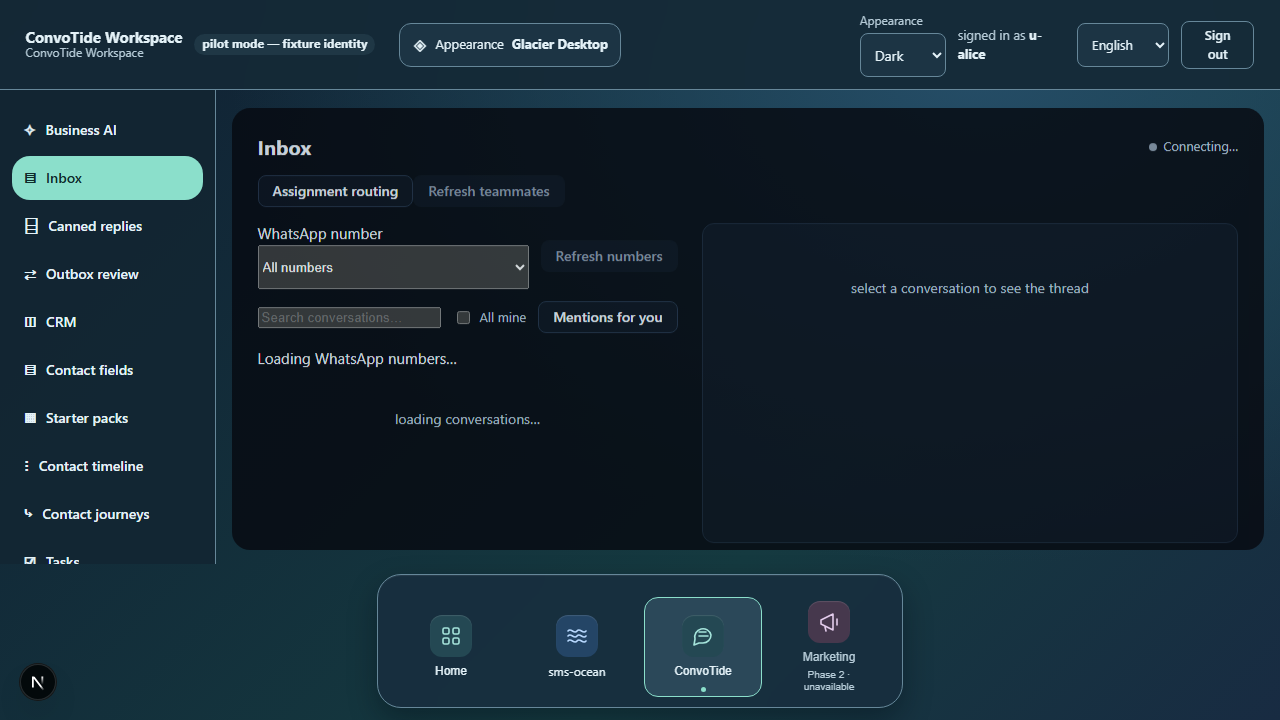
Sign in and you land in the workspace with your inbox visible. If you are in a test/pilot session, the screen says so plainly — "pilot mode — fixture identity" — so a test session is never mistaken for a live one.
2. Finding the WhatsApp menus
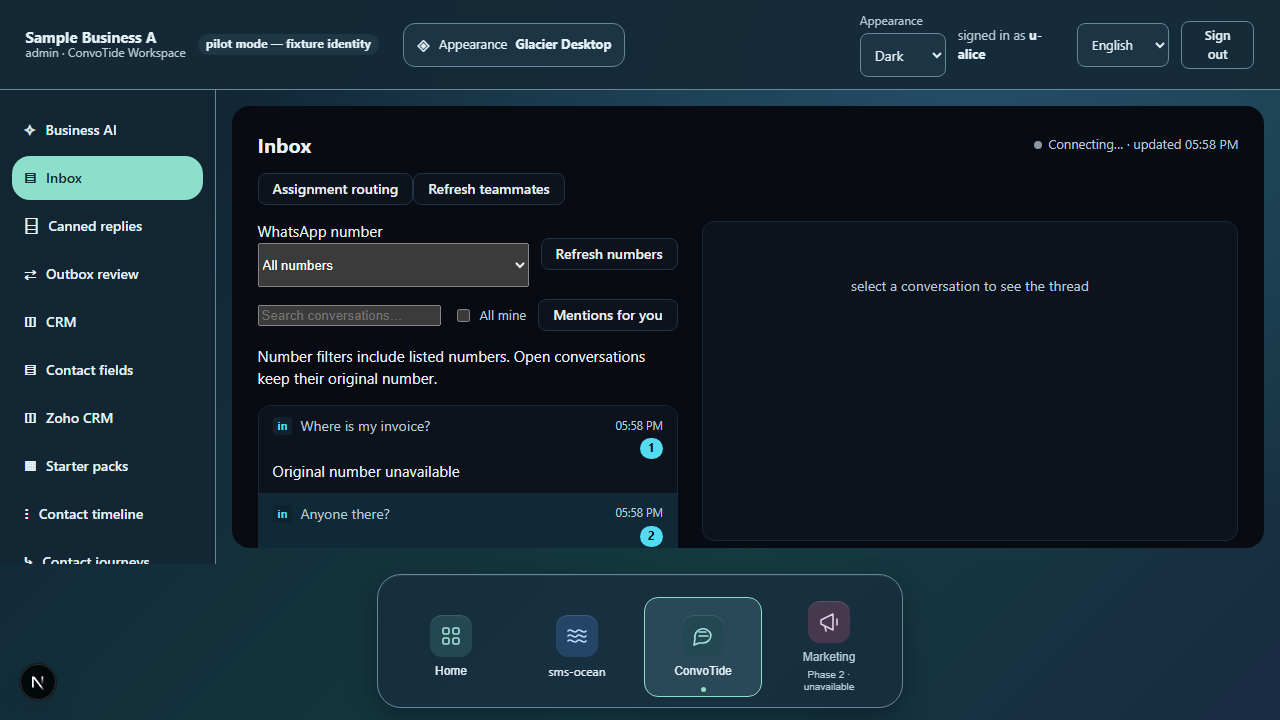
The left navigation gives you the WhatsApp product family — campaigns, templates and onboarding — plus the administrator screens. One honest note from the test run: in that test posture the SMS CRM menu had zero entries, so this guide makes no claim about the SMS CRM side.
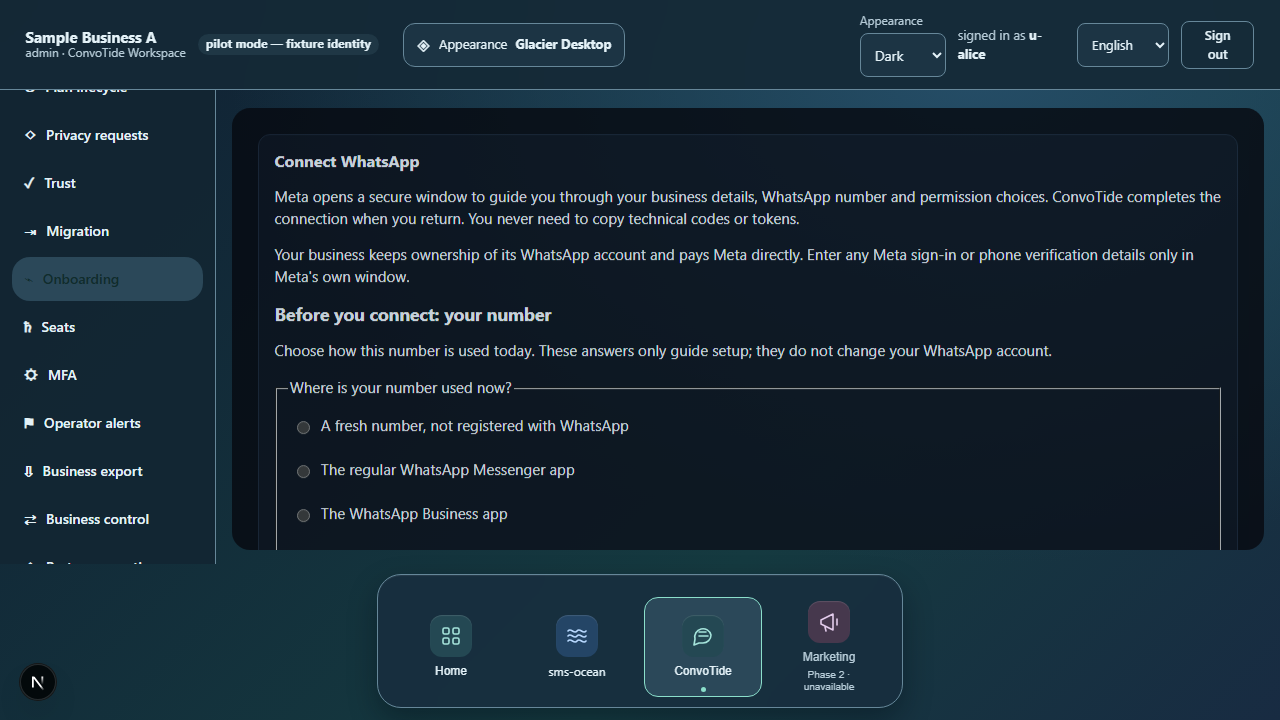
3. Looking at onboarding (number choice) — nothing starts by itself
The onboarding screen shows its number-choice state (including the "use a fresh number" option). Just opening this screen starts nothing: no WhatsApp signup session and no call to the provider was made in the run behind this guide. Live number onboarding is handled separately.
4. Checking analytics and reports
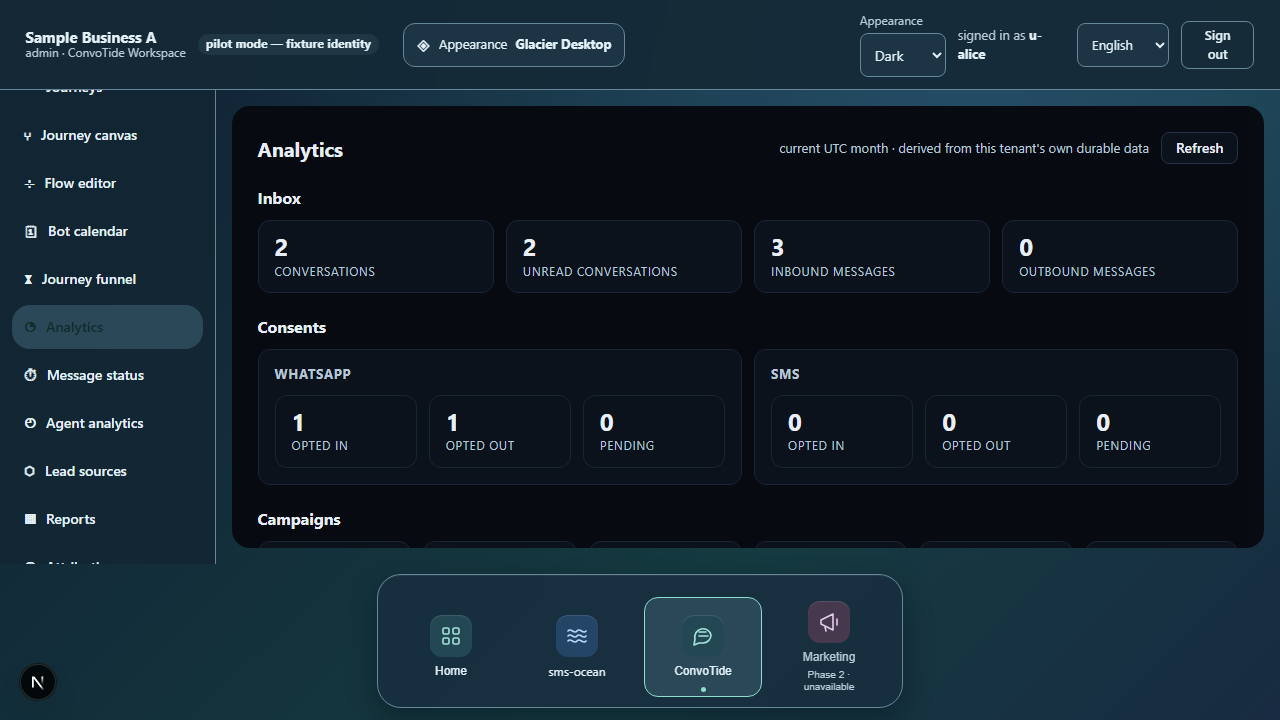
Analytics shows its counters (in the pictures: 2 conversations, 1 opt-out — simulated data), and both the reports and agent-analytics screens open for the owner.
5. Drafting a campaign — and why a reload loses nothing
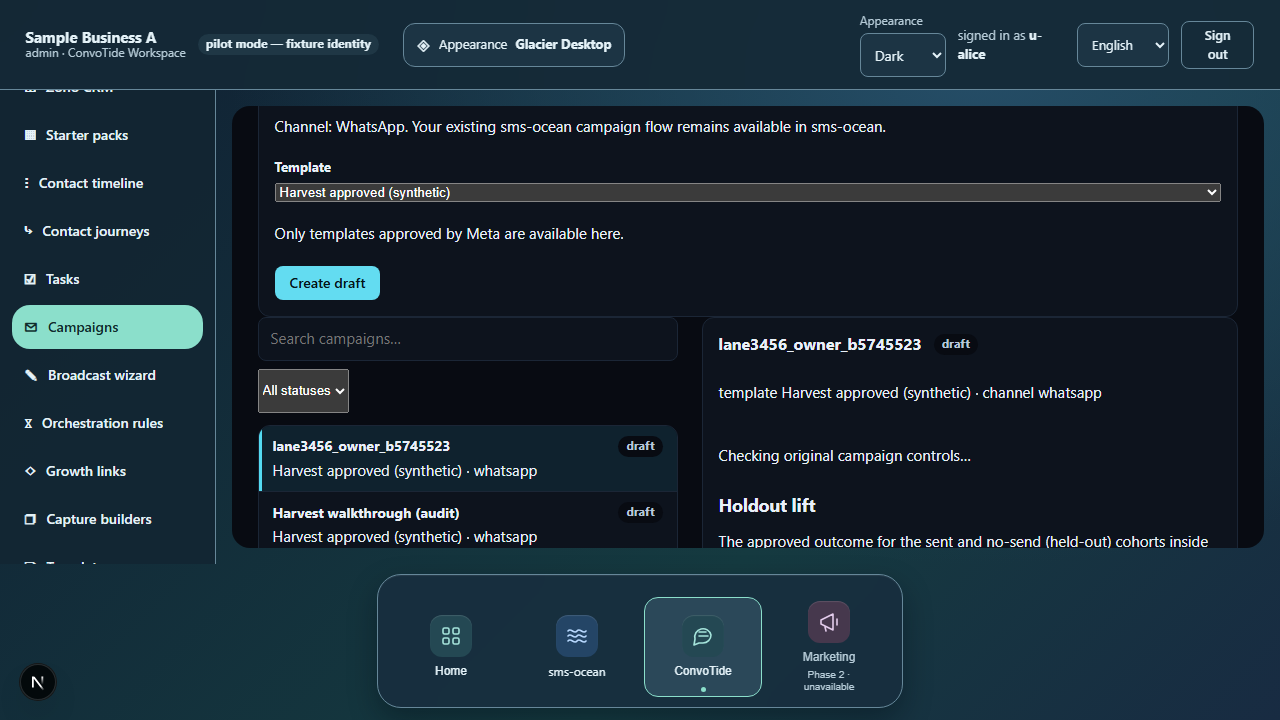
Create a campaign draft from the real campaign form (the example draft is
lane3456_owner_b5745523). If the page reloads mid-flow, nothing is lost:
the workspace recovers and your draft reopens from the campaign list.
6. Approving a campaign
Open Approval and campaign checks. On Basic, the eligible sole verified Customer Owner can choose Approve campaign on a WhatsApp campaign they created. In the team example below, the creator's approval attempt returned:
SELF_APPROVAL_FORBIDDEN — the seat that created this campaign (u-alice) cannot approve it — approval requires a different seat
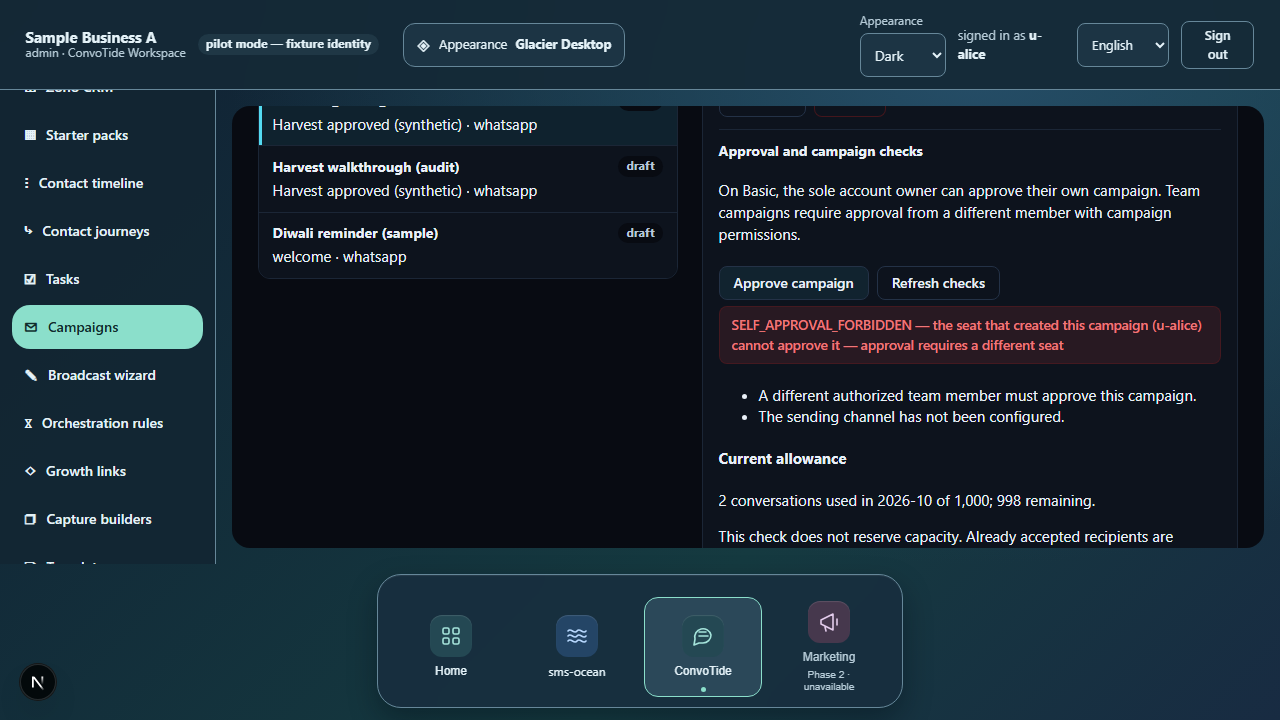
For a team campaign, ask an eligible Customer Admin or delegated campaign approver to open the campaign and approve it.
7. If you try to send before approval
Trying to move a scheduled campaign to sending before anyone has approved it is refused before anything goes out, verbatim:
APPROVAL_REQUIRED — campaign preflight refused: approval_required
Both gates are server-side answers on the actual request — not form-validation guesses.
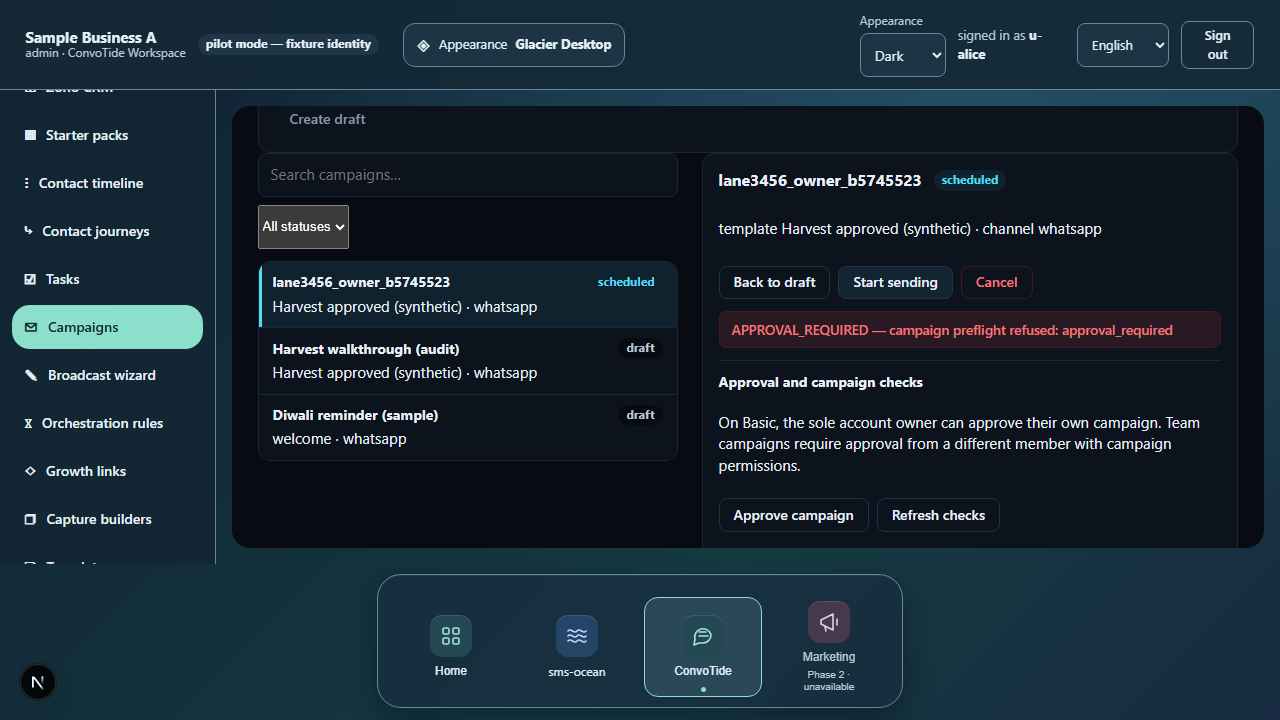
What to do: complete the approval step first (previous section).
8. Checking the recorded approval
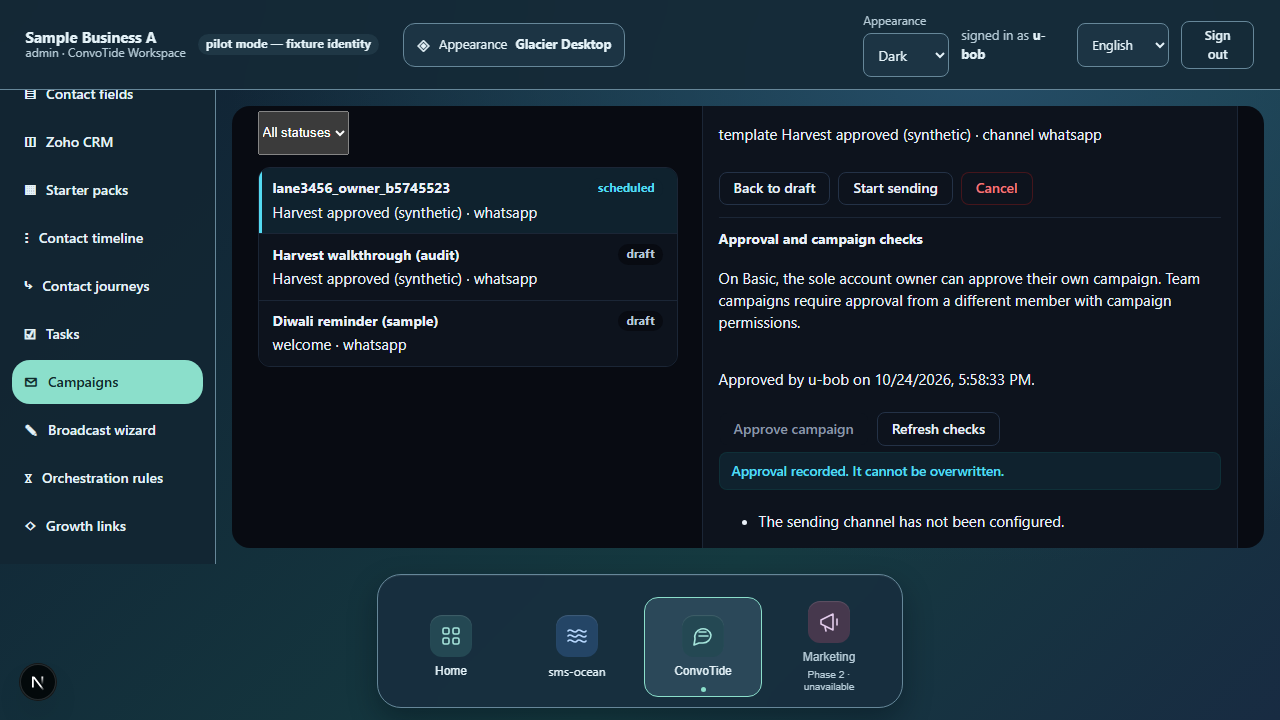
In the team example, another administrator (u-bob) approves the campaign.
The approval record is written once and names the approving person.
On Basic, an eligible sole Owner sees their own name on that record.
9. After approval: scheduled becomes sending
Once the approval is on record, the owner reloads, sees the approval, and the same control now moves the campaign from scheduled to sending. The state change follows the approval; it never bypasses it.
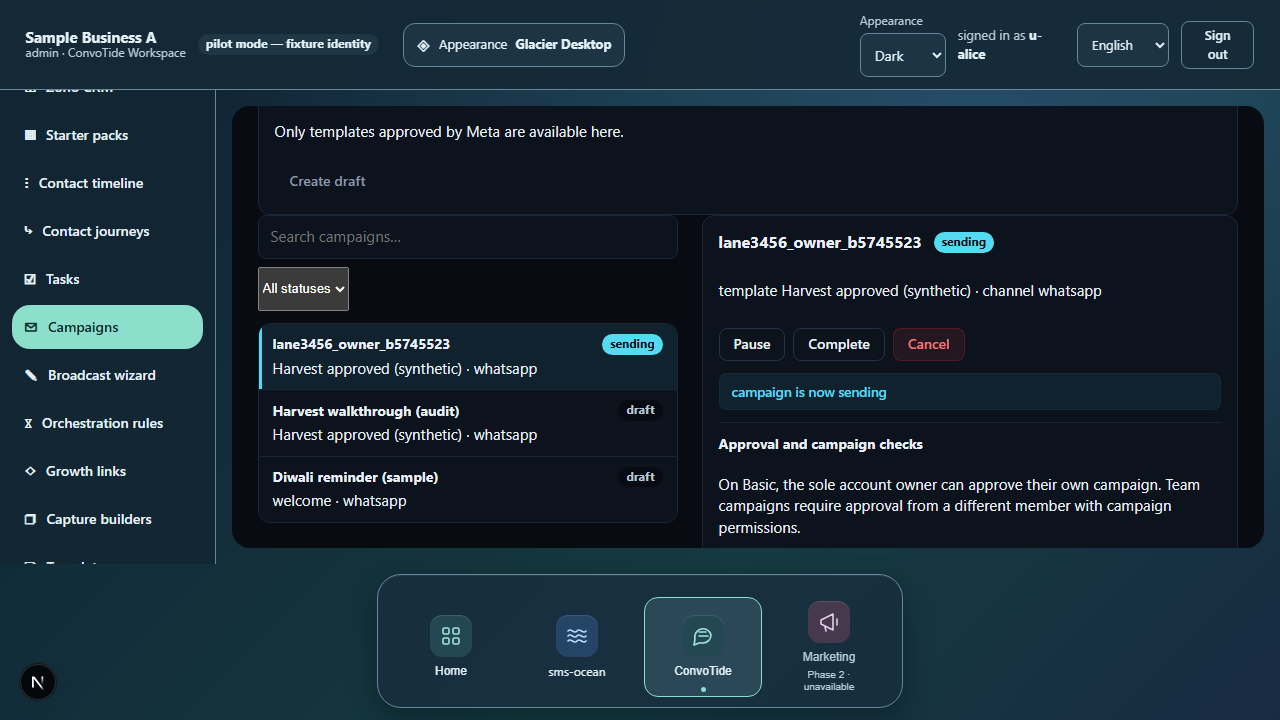
10. Reading the report and exporting it
The campaign report loads with its audience counters. The export confirms plainly, verbatim: "Downloaded campaign report CSV." — that is a download receipt, not a delivery claim.
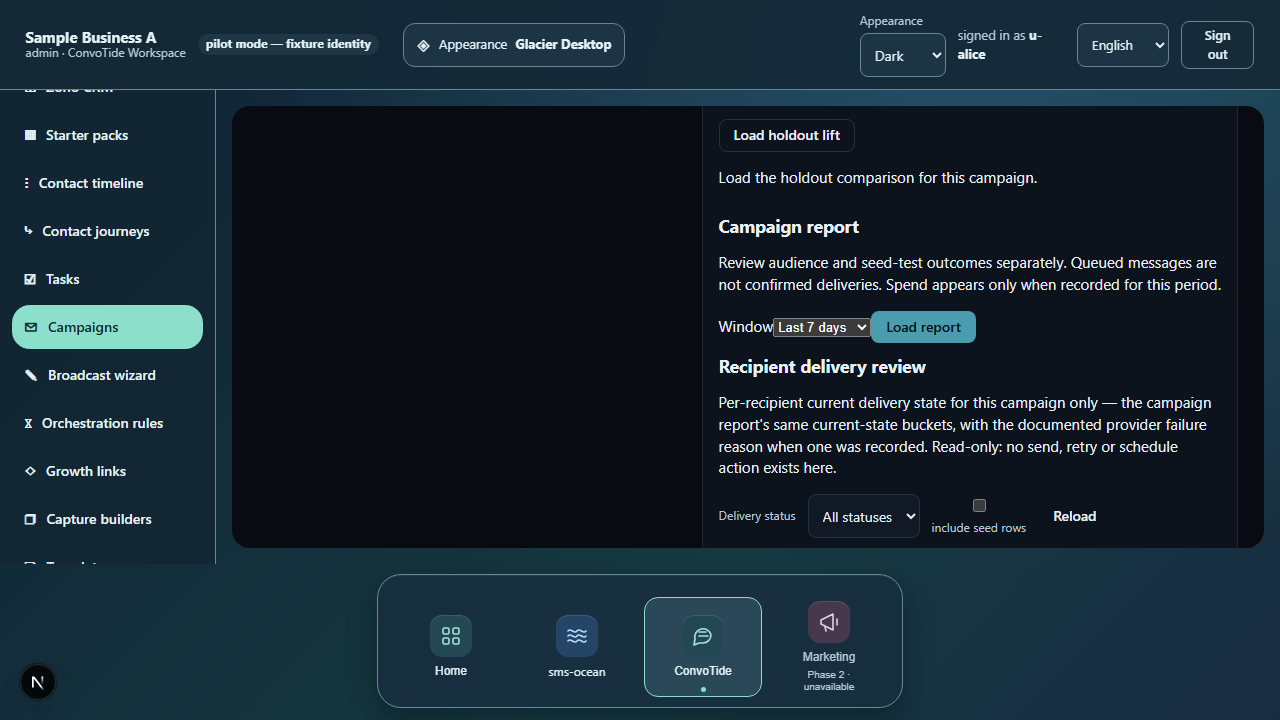
11. Drafting a template — up to the Meta submission form
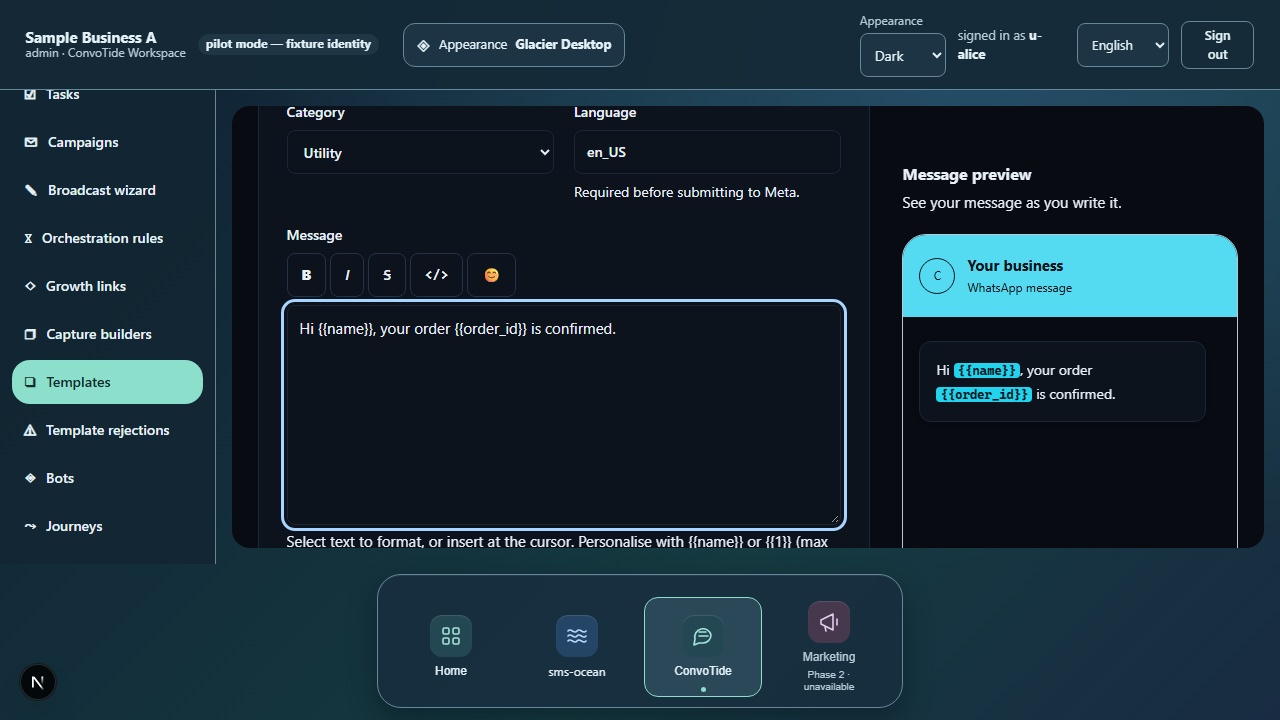
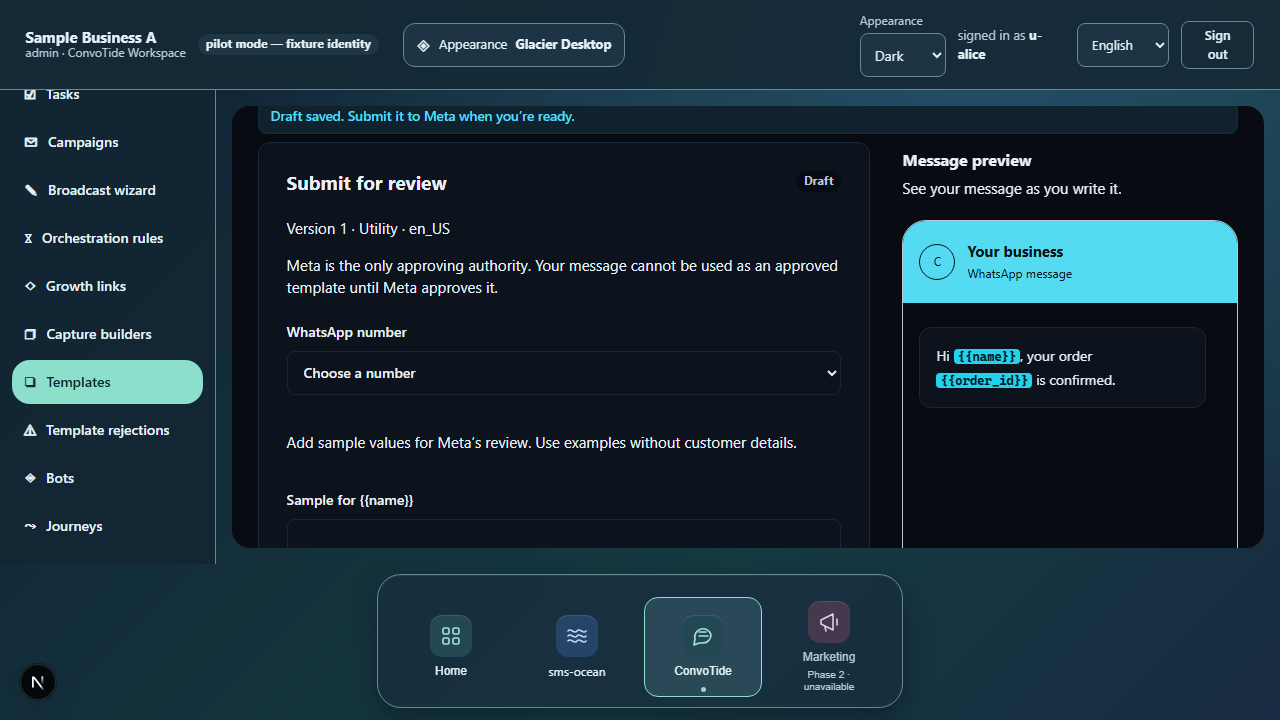
As the owner you can draft a message template (example:
lane3456_owner_b86a17d6a0, status "Draft saved") and open the real
Submit-to-Meta form, which shows its honest submission state. In the run
behind this guide the form was opened and then cancelled: the template's
review status stayed "Draft" and no call to Meta was made. This
guide documents the submit screen's existence and behavior — never a
submission.
12. The approval record on a phone
On a phone-width screen (390 px) the approval record keeps the same information — the write-once record with the approving person stays visible.

13. Signing out
Signing out returns you to the sign-in screen with the session cleared locally. The test run separately confirmed the journey attempted no production portal request.
What this guide does NOT claim (kept honest)
- No template submission to Meta — the real form was opened and cancelled; the status stayed "Draft" and no Meta call was made. Live Meta approval round-trips are not yet documented.
- No live message delivery — "sending" is the campaign state the journey reached; no WhatsApp/Meta message went out, and nothing here claims delivery.
- No live onboarding/provider connection — onboarding screen states only.
- No seat-role management through the screens — the second seat's temporary admin role came from the test setup, not the product UI. The seat journey that is proven (invite and revoke) has its own guide.
- The owner-access probe — honestly blocked in this build's test posture; no evidence claimed.
- No live/Main-built runtime — the run is lane-recorded, pending Chief acceptance and Main integration.
Where the receipts live
| What | Where |
|---|---|
| Final-run screenshots (this guide's images, byte-exact) | C:/CT-ZCODE-BATCH3456/journey-artifacts/final-run/lane3456-A/ |
| Per-leg records with verbatim refusals and receipts | …/final-run/lane3456-A/journey-results.json |
| Journeys lane ledger (receipt mapping, named simulations) | C:/CT-ZCODE-BATCH3456/lane-journeys-ledger.json |
| Playwright results of the final 3-pass run | …/final-run/results.json, …/final-run/journeys-combined.json |
| Guides lane ledger of record | C:/CT-ZCODE-BATCH3456/lane-guides-ledger.json |
Evidence record (kept for honesty). Written from the final passing run of
the BATCH3456 journeys lane (journey A, owner admin), recorded
2026-10-24T12:29Z — 3 journeys passed together in one chromium run, exit 0 —
on branch codex/zcode-3456-journeys @ 9d2136cb (fresh Main358 base). 13
of 15 owner legs passed; one leg is an honest block (owner-access probe not
mounted; no evidence claimed). All of it is local candidate evidence —
Chief acceptance OPEN, Main integration OPEN, nothing here is a live
claim. Boundary note: the journeys checkout carried a candidate
enqueue-submit enablement itself in collision reconciliation (XLR-1 in the
batch ledger; Queue-button fix b39e2ab6 not claimed shipped) — the
scheduled-to-sending transition is documented as the journey that passed,
not as a shipped capability.