Choosing your appearance and dock settings (with pictures)
Who this guide is for: everyone who signs in — owner, administrators and employees. These settings change only your own screen.
Status update — 25 October 2026. The controls described here (the five designs and the dock's position / size / visibility settings) are now live on the portal (Main383,
5d939d74), so you can use these steps as written. The up-to-date guides for these controls live in the portal area; this guide is kept because it has pictures of the controls from an internal test run, and those pictures remain accurate for what the controls do.
How to change the look and the dock
Open Appearance in the header at the top of the screen — it stays there even when the dock is hidden.
Choose a design:
- Open Appearance.
- Pick Glacier Desktop, Prism Rail, Ceramic Studio, Ribbon Dispatch, or Tide & Clay. Selecting a design closes the list. With the keyboard, arrow keys move between designs; Escape closes the list.
- Remember: a new sign-in always starts with Glacier Desktop.
Place and resize the dock:
- Dock position: Automatic (the default), Bottom, Left, Top or Right. Automatic follows the design and screen size.
- Dock size: a slider from 80% to 120% in steps of 10 (default 100%). Small screens keep usable controls; a side dock may scroll.
- Visibility: Always visible (the default), Auto-hide, or Hidden.
With Auto-hide: move the pointer to the dock's edge to reveal it; move away to hide it again. You can also tap the reveal button, or reach it with Tab and press Enter. Escape closes the dock again.
With Hidden: the dock and its reveal button disappear. To bring them back, open Appearance in the header and set Visibility to Always visible or Auto-hide. To reset everything to how it came: Automatic, 100%, Always visible.
Dock settings are remembered per browser across the coordinated products. They never change your business, permissions, plan, subscription, theme mode or saved work. If browser storage is unavailable, the choice works for that visit and the page says so.
Changing the dock's position, size or visibility never unlocks unavailable products or Phase 2 features.
If something looks wrong
| What you see | What it means | What to do |
|---|---|---|
| An "unsaved settings" message | Your browser is blocking storage | The settings apply to this visit only; allow site data to keep them |
| The dock is gone | Visibility was set to Hidden | Restore from Appearance in the header |
| Design back to Glacier Desktop after sign-in | Expected — designs reset each session | Pick your design again for this session |
The pictures — and what they are
The two pictures below come from isolated synthetic test checks of a
candidate build (21baee5): they show simulated test data, no live customer
traffic. The six focused checks behind them passed (phone, desktop, tablet,
short landscape, keyboard/touch reveal, hidden restore, and first-business
draft preservation).
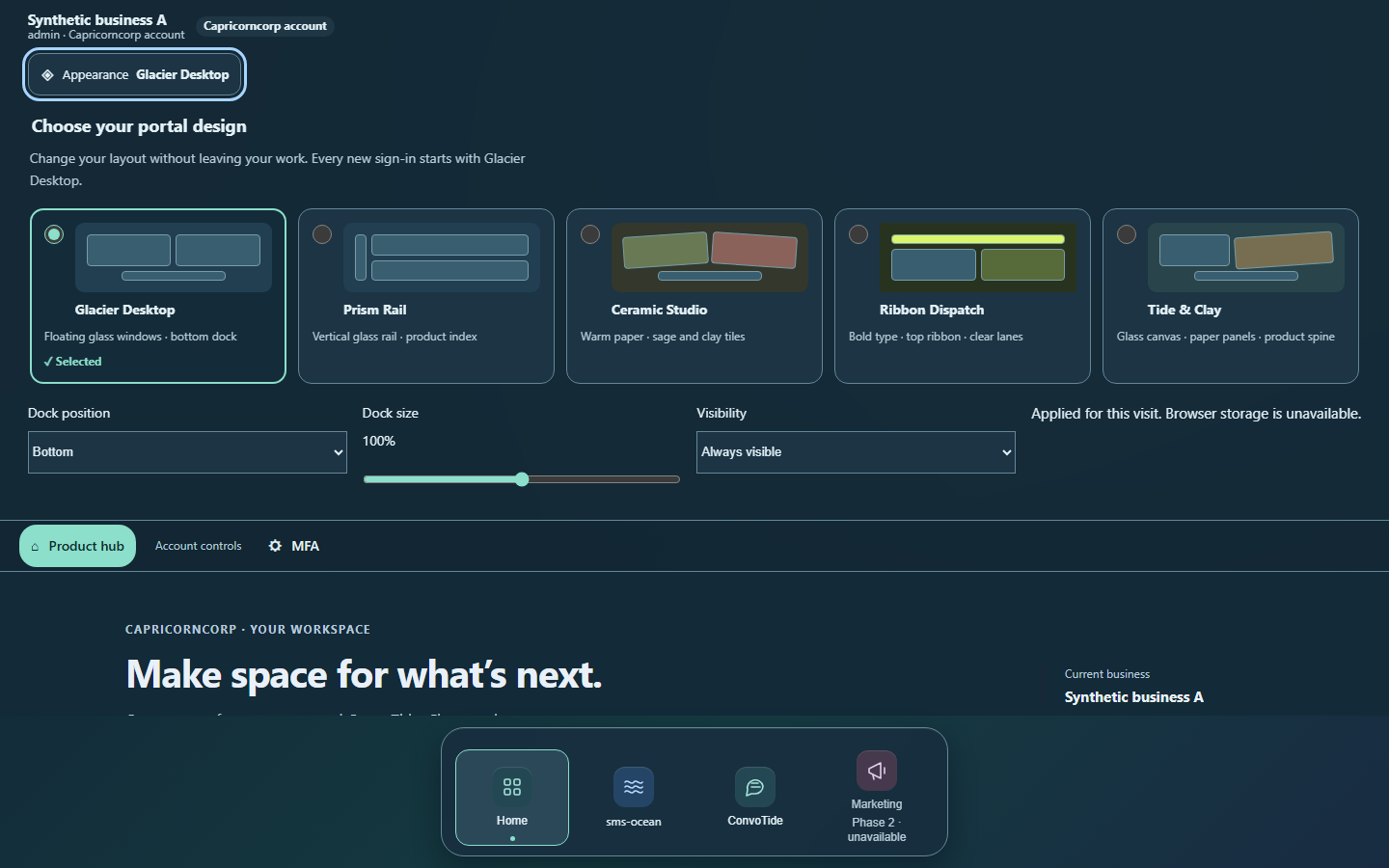
Synthetic example: position, size and visibility controls. Browser storage was deliberately disabled here to show the visit-only feedback.
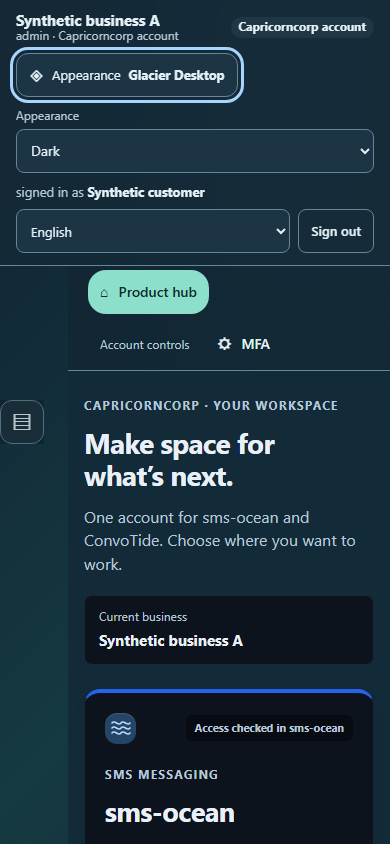
Synthetic phone example: the left-edge reveal button in Auto-hide. Appearance stays in the permanent header.
Evidence record (kept for honesty). Illustrations from isolated
synthetic component/browser checks of candidate 21baee5; no live customer
data. Six focused ConvoTide checks passed; compiled-runtime and production
acceptance for that candidate remained pending at the time. The controls
themselves are now deployed (Main383 5d939d74, verified 25 October 2026 —
see the portal area). This does not establish
whole-guide completion or live messaging/Meta delivery.