The customer drawer — recording deals, follow-ups and internal notes
Who this guide is for: EMPLOYEES (teammates who work conversations) and their administrators. This is everyday inbox work; you need CRM write permission for the save steps (see "If your seat is refused" below).
While you work a conversation, ConvoTide shows a customer drawer beside the message thread. Use it to record a deal, set a follow-up with an exact due time, and write an internal note that can never reach the customer.
About the pictures and examples. All screenshots and examples come from an isolated, synthetic test business used for product acceptance testing. Names like "Priya (sample)" and titles like "zc3068… priya deal" are simulated test data, not real customers. The run verified at the database level that no message was sent to any contact during the whole journey — the drawer is a business record tool and never messages the customer.
Step 1 — Open the drawer on the conversation you are working
- Sign in and open Inbox from the workspace navigation.
- Click the conversation row for the customer you are helping. The message thread opens, and the customer drawer opens beside it.
- The drawer shows three controls: Create deal, Create follow-up and Add internal note, plus the customer's saved Deals and Follow-ups sections.
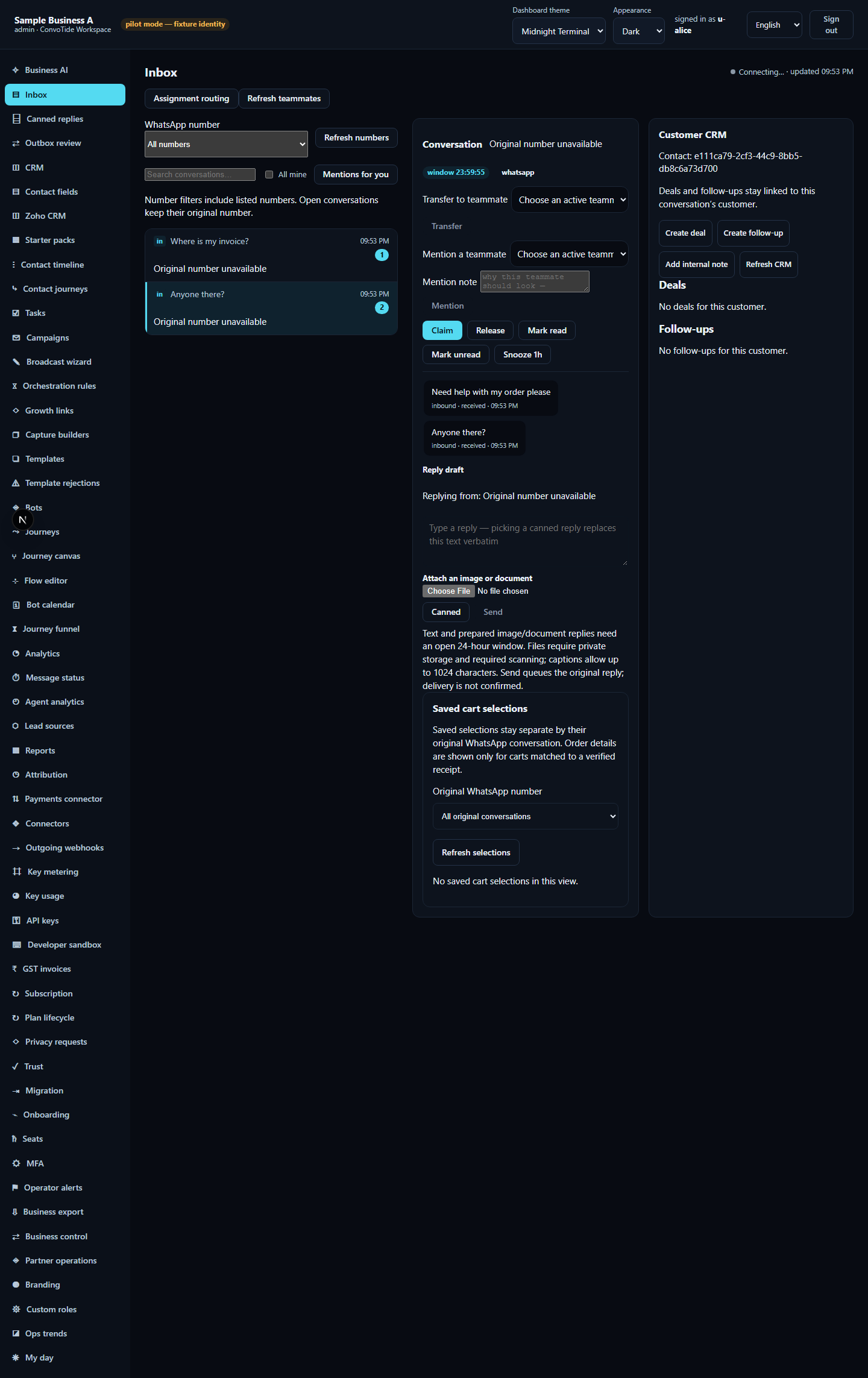
The drawer always belongs to the selected conversation — the customer's identifier is visible at the top, so you can always confirm whose records you are editing.
Step 2 — Record a deal
- Click Create deal. A small form titled New deal opens.
- Type the deal title (for example "Renewal quote — Priya").
- Choose a Pipeline from the dropdown by its visible name — the options are your business's pipelines. This picks the pipeline, not the stage: the starting stage comes from the pipeline you choose (in the test run the record started at stage Lead, status open).
- Click Save. The drawer confirms, verbatim: "Deal created for this customer." The new deal appears in the drawer's Deals section immediately.
Step 3 — Set a follow-up with an exact due time
- Click Create follow-up. A form titled New follow-up opens.
- Type the follow-up title.
- Fill the due field — a date-and-time picker with minute precision.
The value you pick follows your own device's clock; the test run chose
2026-11-05T14:05and the saved record carried exactly that instant. - Click Save. The drawer confirms, verbatim: "Follow-up created for this customer."
Step 4 — Write an internal note
- Click Add internal note.
- Type your note.
- Click Save. The drawer confirms, verbatim: "Internal note saved — visible to your business only, never sent to the customer."
That message is the product's promise, and the run verified it: the note was stored on the business's internal timeline, and zero outbound message attempts existed before and after the whole journey.
Step 5 — Check that it stuck (and only on the right customer)
- Reload the page, open Inbox, click the same conversation. The drawer shows the same deal and follow-up — they were saved on the server, not just on your screen.
- Click a different customer's conversation. That drawer does not show the first customer's records — verified in the database that nothing landed on the wrong contact.
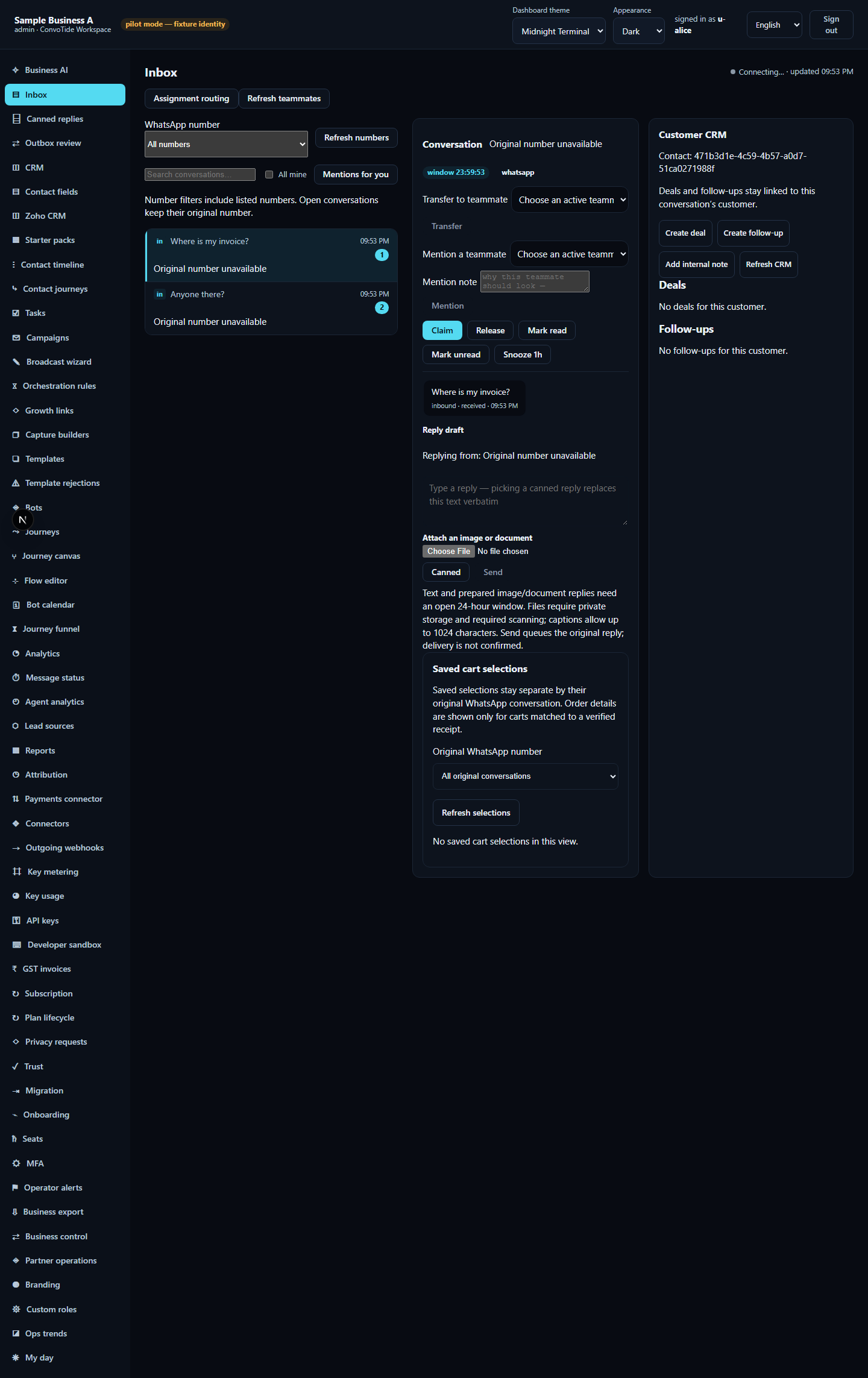
Switching quickly between two customers mid-load is also safe: even when one customer's records are still loading while you switch, a late response never writes the first customer's records onto the second customer's drawer.
Cancelling — nothing is sent until you press Save
- In the deal or follow-up form, Cancel closes the form and returns keyboard focus to the button that opened it. Nothing is sent.
- In the note form, pressing Escape does the same.
- Verified at the network and database level: cancelled forms produce zero writes.
If you see an error
| What you see | What it means | What to do |
|---|---|---|
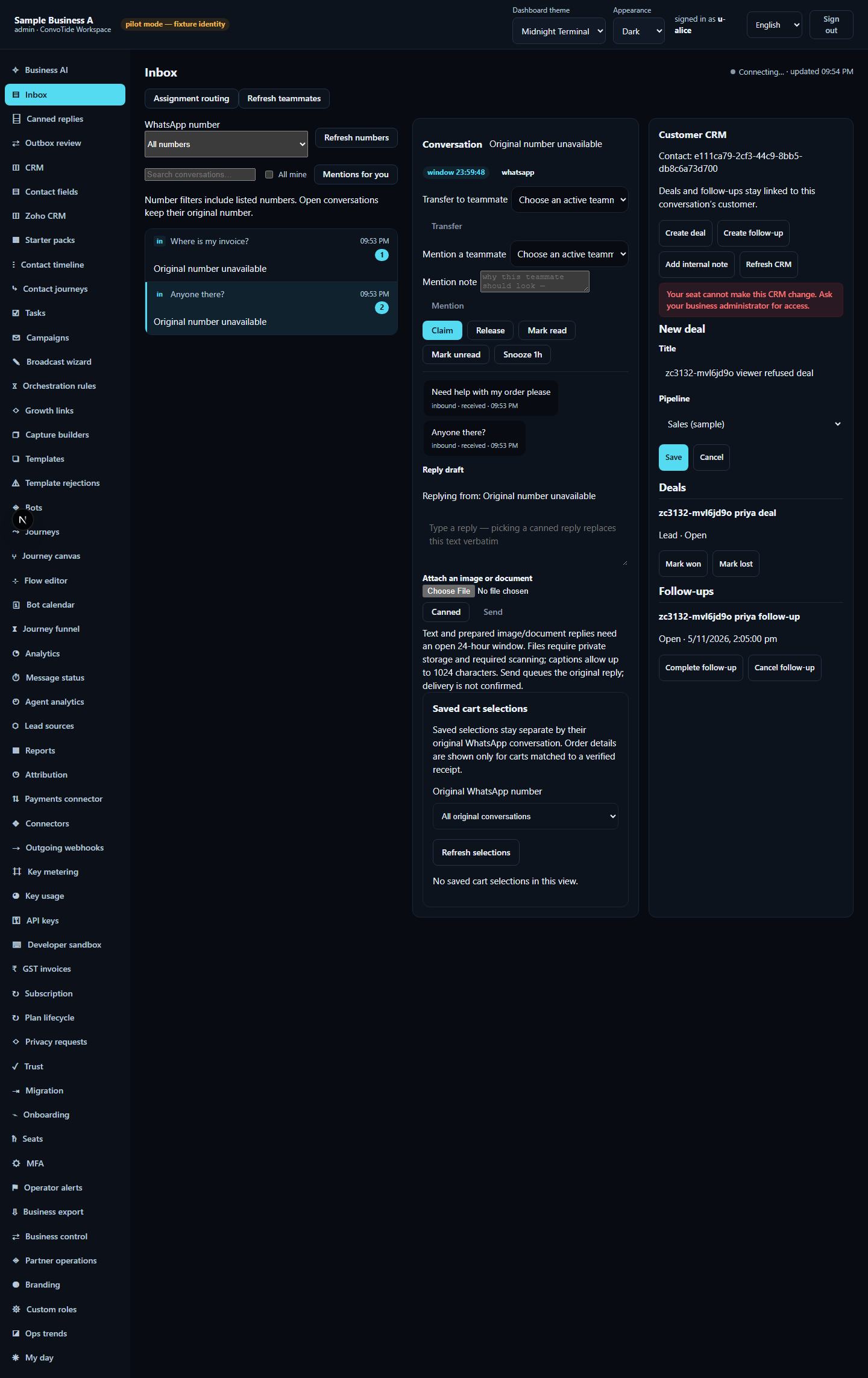
| "Your seat cannot make this CRM change. Ask your business administrator for access." | Your seat lacks CRM write permission (for example a read-only viewer) | Ask your administrator; keep the form open — once permission is restored, clicking Save on the same open form works, no retyping needed |
| A notice containing the word unknown during a save | The connection dropped mid-save — the app honestly does not know whether it landed; the Save button deliberately will not re-send (this prevents duplicates) | 1) Click another conversation and back to re-open the drawer; 2) fill the form again and press Save. The retried save creates exactly one record |
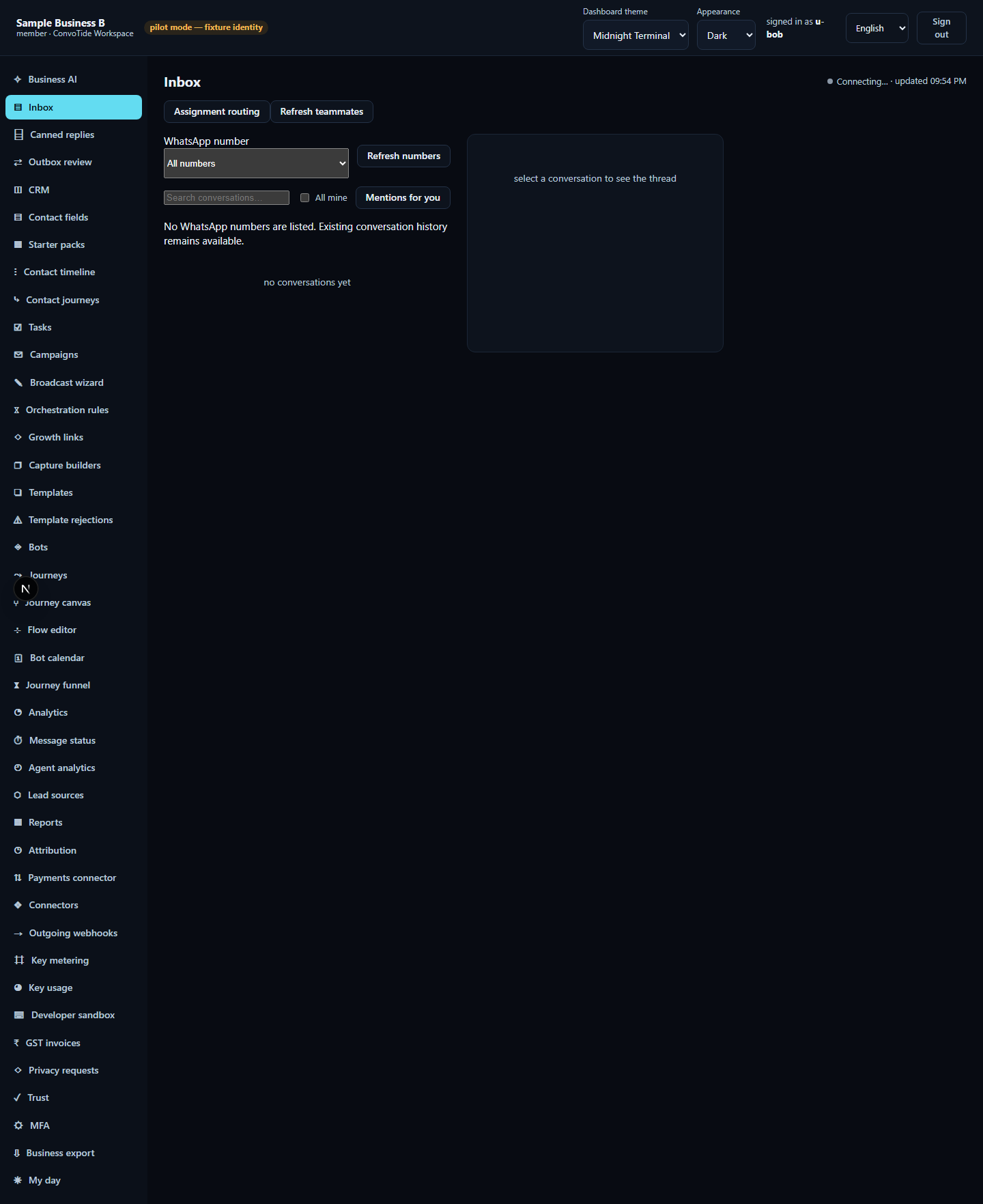
Other businesses see nothing of yours
If you sign out and sign in as a seat of a different business, that seat sees its own (empty) inbox and none of the first business's deals, follow-ups, contacts or customer names. Signing back in restores the drawer exactly as saved.
On a phone
At phone width (390px) the drawer stays fully usable, with no sideways scrolling needed.

The same controls in all five languages
The interface ships with five languages. The evidence run used English; the other values are the product's own built-in translations at the tested revision.
| English (as tested) | हिन्दी | ਪੰਜਾਬੀ | मराठी | ગુજરાતી |
|---|---|---|---|---|
| Create deal | सौदा बनाएँ | ਸੌਦਾ ਬਣਾਓ | व्यवहार तयार करा | સોદો બનાવો |
| Create follow-up | फ़ॉलो-अप बनाएँ | ਫਾਲੋ-ਅੱਪ ਬਣਾਓ | पाठपुरावा तयार करा | અનુસરણ બનાવો |
| Add internal note | आंतरिक नोट जोड़ें | ਅੰਦਰੂਨੀ ਨੋਟ ਜੋੜੋ | अंतर्गत नोंद जोडा | આંતરિક નોંધ ઉમેરો |
| New deal | नया सौदा | ਨਵਾਂ ਸੌਦਾ | नवीन व्यवहार | નવો સોદો |
| New follow-up | नया फ़ॉलो-अप | ਨਵਾਂ ਫਾਲੋ-ਅੱਪ | नवीन पाठपुरावा | નવું અનુસરણ |
| Internal note | आंतरिक नोट | ਅੰਦਰੂਨੀ ਨੋਟ | अंतर्गत नोंद | આંતરિક નોંધ |
| Deals | सौदे | ਸੌਦੇ | व्यवहार | સોદા |
| Follow-ups | फ़ॉलो-अप | ਫਾਲੋ-ਅੱਪ | पाठपुरावे | અનુસਰણો |
| Save | सहेजें | ਸੰਭਾਲੋ | जतन करा | સાચવો |
| Cancel | रद्द करें | ਰੱਦ ਕਰੋ | रद्द करा | રદ કરો |
What this guide does NOT claim (kept honest)
- The run exercised creating deals, follow-ups and notes, persistence, isolation, refusals and recovery. Other actions the interface offers (marking a deal lost, completing or cancelling a follow-up, editing or deleting records) were not exercised and are not described here.
- Contact tags, typed custom fields and consent context were not part of this run.
- No live WhatsApp/Meta message was sent or delivered; all data is simulated test data.
- This guide does not claim whole-product completion or equivalence with any other provider set.
Evidence record (kept for honesty). From the completed ZC-3132 inbox
lane, run O4 (23 October 2026, 17 of 17 tests passed on the first clean
run) of zc3068-crm-drawer-browser.spec.ts, executed on the real app with a
real browser and an isolated test database (a local candidate — not
Main-built, not live). Lane evidence ledger:
C:/CT-ZCODE3132/lane-inbox-cont-ledger.json; screenshot SHA256 checksums
in assets/ASSETS-MANIFEST.json. Current
standing: at authoring time Chief acceptance of the lane was open
(historical status, preserved); independent review
CT-INBOX-REVIEW3143 has since
accepted the inbox local candidate at HEAD
85bf2a878df1e2430354910e9718c3ed62a2c05b (bounded local-candidate
acceptance; the drawer journeys above are the accepted scope). Main PR #336
is Chief-reported source integration — not independently verified Main-built
or live evidence here.