Moving a bot flow between bots — export and import
Who this guide is for: customer ADMINISTRATORS with a seat holding the bots:write permission (read-only seats are refused — see the refusal table). You also need a plan that includes bots (see the bots plan note — Basic excludes bots entirely).
This guide shows you how to take a bot's flow out of ConvoTide as a file (export) and bring a flow file back in as a new draft bot (import), using the same screens and buttons you see in the product. Every button name, message and screen below matches what the test saw on screen.
About the pictures and examples. All screenshots and examples in this guide come from an isolated, synthetic test business used for product acceptance testing. Names like "SYNTHETIC … 2906" and keywords like "SYNTHETIC2905" are simulated test data, not real customers. No live WhatsApp/Meta message was sent during this test. This guide covers only the flow export/import journey — it makes no claim about other product journeys or about parity with any other provider set.
What export and import are for
- Export downloads a bot's current flow as a portable
convotide-bot-flow/v1JSON file. As the screen says: "The export reads this bot's current draft graph and downloads it as a portable convotide-bot-flow/v1 JSON file. Nothing on the bot changes." - Import turns such a file into a brand-new draft bot. As the screen says: "Importing always creates a NEW draft bot — it never changes an existing or published bot."
The accepted test moved a complete flow containing all 25 node kinds and 24 edges through export and import, in five interface languages (English, हिन्दी, ਪੰਜਾਬੀ, मराठी, ગુજરાતી) on both a 1440-px desktop window and a 390-px phone window, and the database rows matched after the import and after a full page reload.
Before you start
- You need a seat with the bots:write permission for the business. Read-only seats (for example Viewer) get a refusal — see "If you are refused" below.
- Your business needs at least one existing bot: importing uses an existing bot of this business as its source anchor. If there is none, the screen tells you: "Importing needs an existing bot in this business as its source anchor. Create a bot first."
- Both desktop and phone browsers are supported; the screens below were verified at both sizes with no sideways scrolling.
Step 1 — Open the Bots screen
- Sign in to the workspace.
- In the Workspace sections navigation, click Bots.
- You see the Bots page: the New bot form, the Import a flow panel, and the list of your bots.
Step 2 — Export a flow to a file
- In the bot list, click the bot you want to export. Its Bot editor panel opens on the right.
- Click Export flow JSON.
- The button briefly shows Exporting…, then Flow JSON downloaded.
Your browser saves a JSON file named after the bot and the date/time of the
download (for example
bot-2905-published-portable-source-flow-20261023-0846.jsonin the test).
Nothing about the bot changes — you can export at any time as a backup or to hand the flow to another business.
Export refusal: if the server's answer did not look like a valid flow document, no file is saved and the screen shows "The export response did not match the flow document shape. No file was downloaded." If the export simply failed, you see "Flow export failed." In both cases: try again, and if it keeps failing, contact your administrator.
Step 3 — Import a flow file as a new draft bot
- On the Bots page, find the Import a flow panel.
- In Import source bot, choose one of your business's bots from the list. The screen explains: "The server anchors the import to a bot in this business and names the new draft after it. A bot from another business reads as not found."
- Click Choose flow file and pick the
convotide-bot-flow/v1JSON file in your browser's file picker. - An Import preview appears showing Nodes, Edges and Node kinds counts, plus New bot name — leave it empty to accept the server default name. The preview repeats the document's shape checks before sending, but as the screen notes: "The server still runs its own authoring checks and its refusal is the final word — nothing is created until it answers 201."
- Click Import as new draft.
- On success you see: "Imported — a new draft bot was created with {nodes} nodes and {edges} edges. The bot list has been refreshed." together with the New bot ID. The new draft appears in the bot list, and clicking Import another file starts the next import.
Cancel instead: if you change your mind before confirming, click Clear file. The accepted test confirmed that cancelling writes nothing.
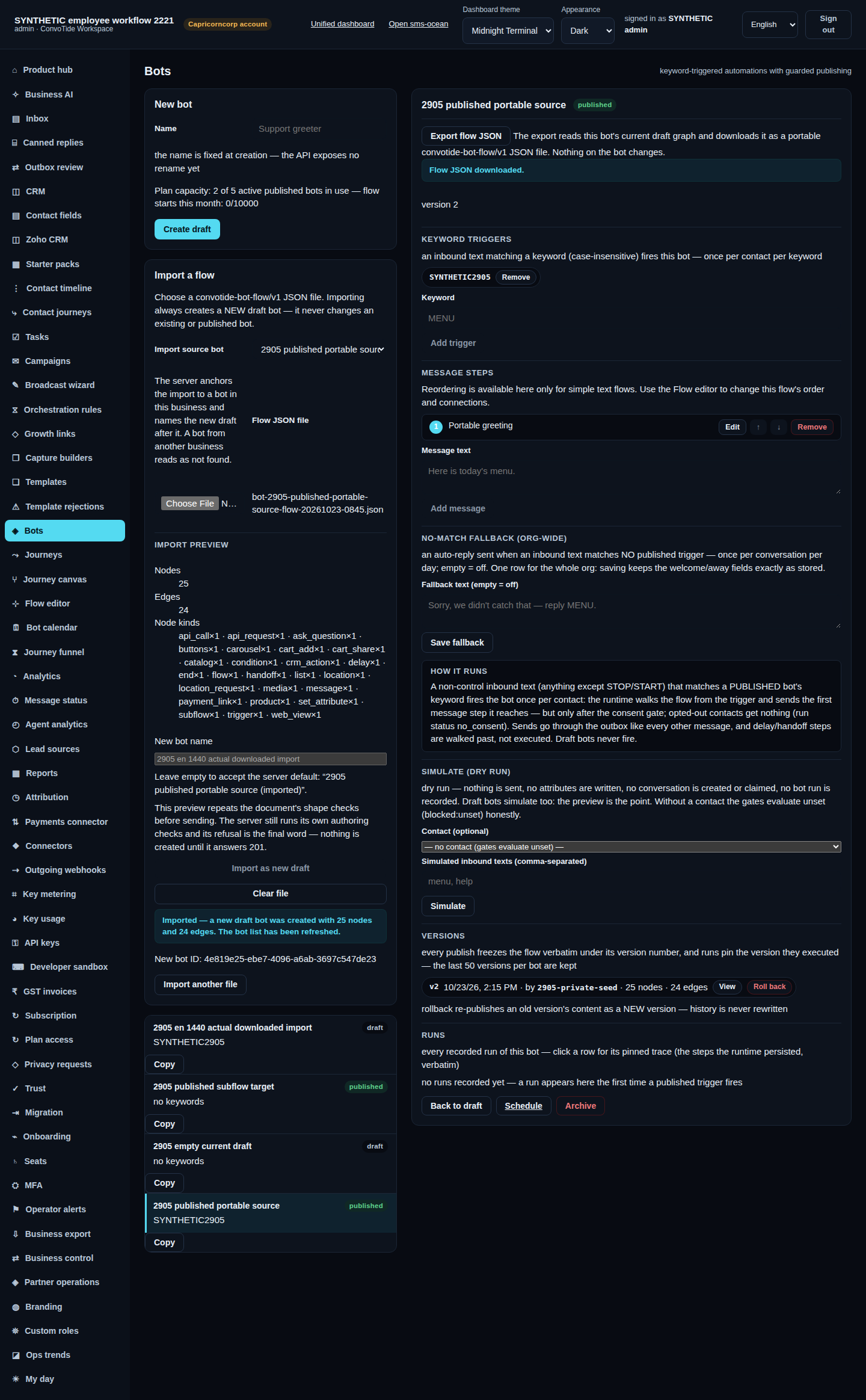
After the page is fully reloaded, the imported draft bot is still there and the database rows match — the import is durable, not just on-screen:
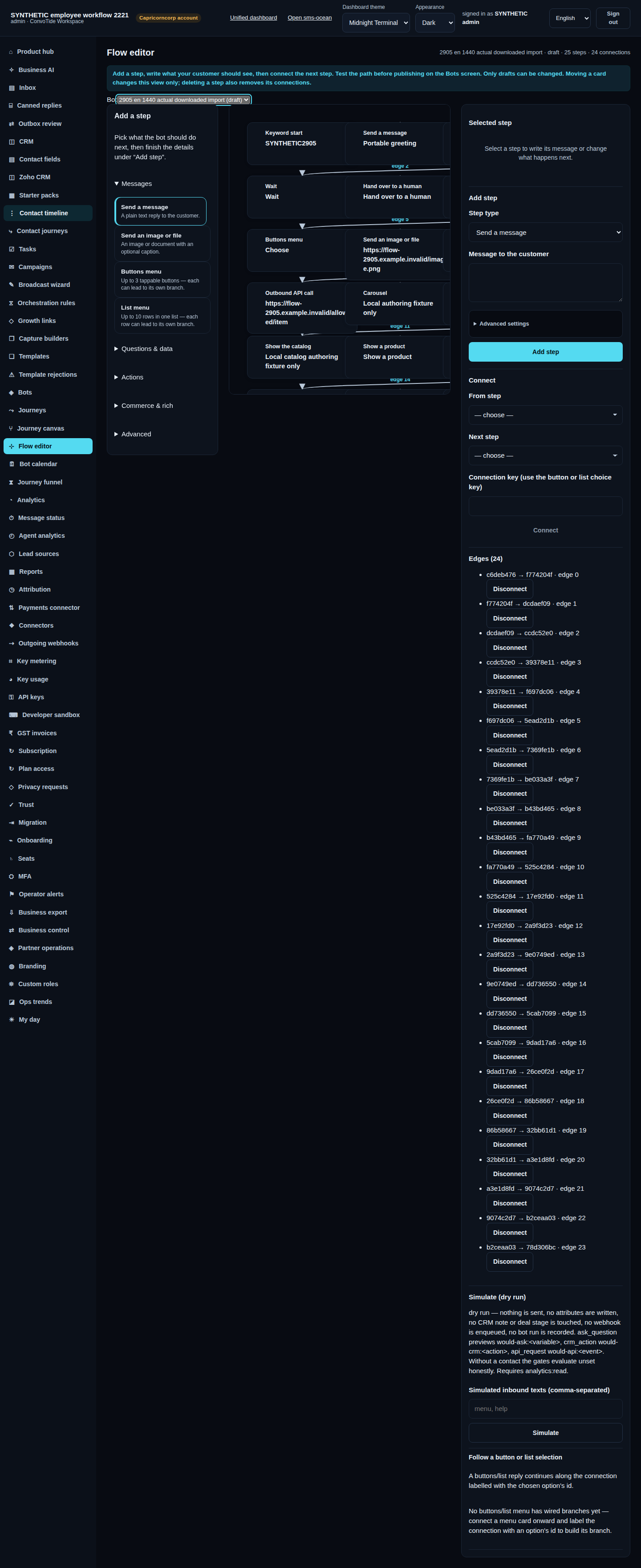
The same journey works on a phone-sized window:


The buttons and messages are translated too — the test verified English, हिन्दी, ਪੰਜਾਬੀ, मराठी and ગુજરાતી. For example in हिन्दी:


If you are refused — what the messages mean and what to do
These are the real refusal and recovery paths from the accepted test:
| You see | What happened | What to do |
|---|---|---|
| "This file is not readable as JSON." | The chosen file is not JSON at all. | Pick the correct .json export file. |
| "This file is not a valid flow document: {reason}" | It is JSON, but not a convotide-bot-flow/v1 flow document. |
Re-export from the source bot; the reason names what is wrong. |
| "The server refused this document as invalid. Nothing was created." (with Server message: …) | The server's own authoring checks refused a node or setting — its refusal is the final word. For example, the test saw refusals for an api_call URL not on the business's allowlist, and for a node whose configuration was incomplete. |
Fix the named node in the source flow, export again, import again. Nothing was created, so there is nothing to clean up. |
| "Importing needs the bots:write permission for this business." | Your seat lacks the bots:write scope (the server answered SCOPE_DENIED, "this action requires the "bots:write" scope for your seat" — the same refusal applies to export). |
Ask an administrator for a seat with bots:write, or have them do the import. |
| "The source bot was not found. It may belong to another business or no longer exist." | The chosen source bot belongs to another business (tenant isolation — it reads as not found, never as someone else's bot) or was deleted. |
Choose a source bot from your own business. |
| "The import outcome could not be confirmed. Refresh the bot list before retrying; a draft may already exist." | The connection dropped or the server errored after your click. The test proved the import may actually have committed — and that a blind retry creates a second draft. | Refresh the bot list first and look for the new draft. If it is there, you are done; only import again if you truly want another copy. |
| "Your sign-in ended. Sign in again to import." | Your session expired. The test also verified the opposite case: one old, expired session's error did not end a freshly signed-in session — so a single 401 does not always mean you. | Only sign in again when you actually see this message; otherwise just retry. |
Things worth knowing (real decisions, not fine print)
- Import never overwrites. Every import creates a NEW draft bot. If you import the same file three times, you get three drafts. That is by design — check the bot list after an unconfirmed outcome before retrying.
- The bot name is fixed at creation. The New bot form states: "the name is fixed at creation — the API exposes no rename yet." Accept the default name or type your choice in New bot name during the import preview — you cannot rename it later.
- Latest file wins. If you pick a file, then pick a different one before confirming, the newest choice is what gets read. The test also verified that abandoning a pending export or leaving the page mid-flight does not change your current selection or save stray downloads.
- Drafts are unlimited and safe. Importing always lands in a draft; publishing (and any capacity limits) is a separate, later step.
What this guide does NOT claim (kept honest)
This guide documents the accepted flow export/import journey only. It does not claim anything about other journeys, whole-product completion, live WhatsApp/Meta delivery, or equivalence with any other bot set or provider.
Evidence record (kept for honesty). Chief acceptance CT-FLOW3002
(CHIEF_ACCEPTED_FLOW_COMPONENT, 23 October 2026, 16 of 16 required cases
passed, 0 failed) on app source
7e97fa71b69eda5b116a785225e7244e9d004f0a. The screenshots used here are
listed with their acceptance IDs and SHA256 checksums in
assets/ASSETS-MANIFEST.json.