Publishing a bot, testing it in the simulator, and rolling it back
Who this guide is for: customer ADMINISTRATORS who build and run bots.
A bot moves through a simple lifecycle: draft while you build it, published when it answers customers, and back to draft to change it. Every publish freezes a saved version, and rollback re-publishes an older saved version's content as a new version. This guide walks the lifecycle as one connected journey, including the built-in simulator that lets you test a bot without contacting anyone.
Plan prerequisite. These journeys need a plan that includes bots and a seat with bot-management permission. The Basic plan is messaging-only — it excludes bots and AI entirely, and changing your seat's role cannot unlock them there. See the Basic plan refusal in Bot capacity, saved versions and rollback.
About the pictures and examples. All screenshots come from an isolated, synthetic test business used for product acceptance testing. Bot names like "ZC3132 Publish Bot …" and keywords like "pub…" are simulated test data. The runs verified at the database level that the simulator sent nothing — no message, no send intent — at any point.
Related guide: plan capacity refusals (publishing when every active-bot slot is taken) and browsing saved versions in detail are covered in Bot capacity, saved versions and rollback. This guide covers the lifecycle itself: draft, first publish, fallback text, a second version, and a two-step rollback.
Step 1 — Create the bot: it starts as a draft on both surfaces
- Open Bots from the workspace navigation. Next to the creation form the screen shows your plan capacity line (how many active published bots your plan includes).
- Type the bot's name in the creation form and submit it.
- The new row appears in the list marked draft, and when you click the row, the editor's status badge also reads draft — both surfaces always agree on the state.
Step 2 — The publish guard: no trigger, no publish
A brand-new bot has no content yet, and the app refuses to publish an empty bot before you can try: the Publish button is greyed out, and the editor shows an explanation of exactly what is missing (a keyword trigger and/or a message step).
- Type a keyword and add it as a trigger — it appears as a chip.
- Type a message text and add it as a message step.
- As soon as the bot has both, the Publish button enables.
Step 3 — First publish: version 2, and why
Click Publish. The badge changes to published in the editor and the list row follows. The version ledger gains its first entry.
Why the first publish is version 2. The version counter belongs to the bot's whole life: creating the bot occupies version 1, and every publish freezes a new version. So the first publish freezes version 2 — this is the product's intended contract. What this run verified in the database was the ledger's metadata: exactly one frozen version entry existed after the first publish, at version 2, published by the API. Whether the frozen snapshot's full content matched the authored graph node-for-node was not asserted by this run (see What this chapter does not claim).
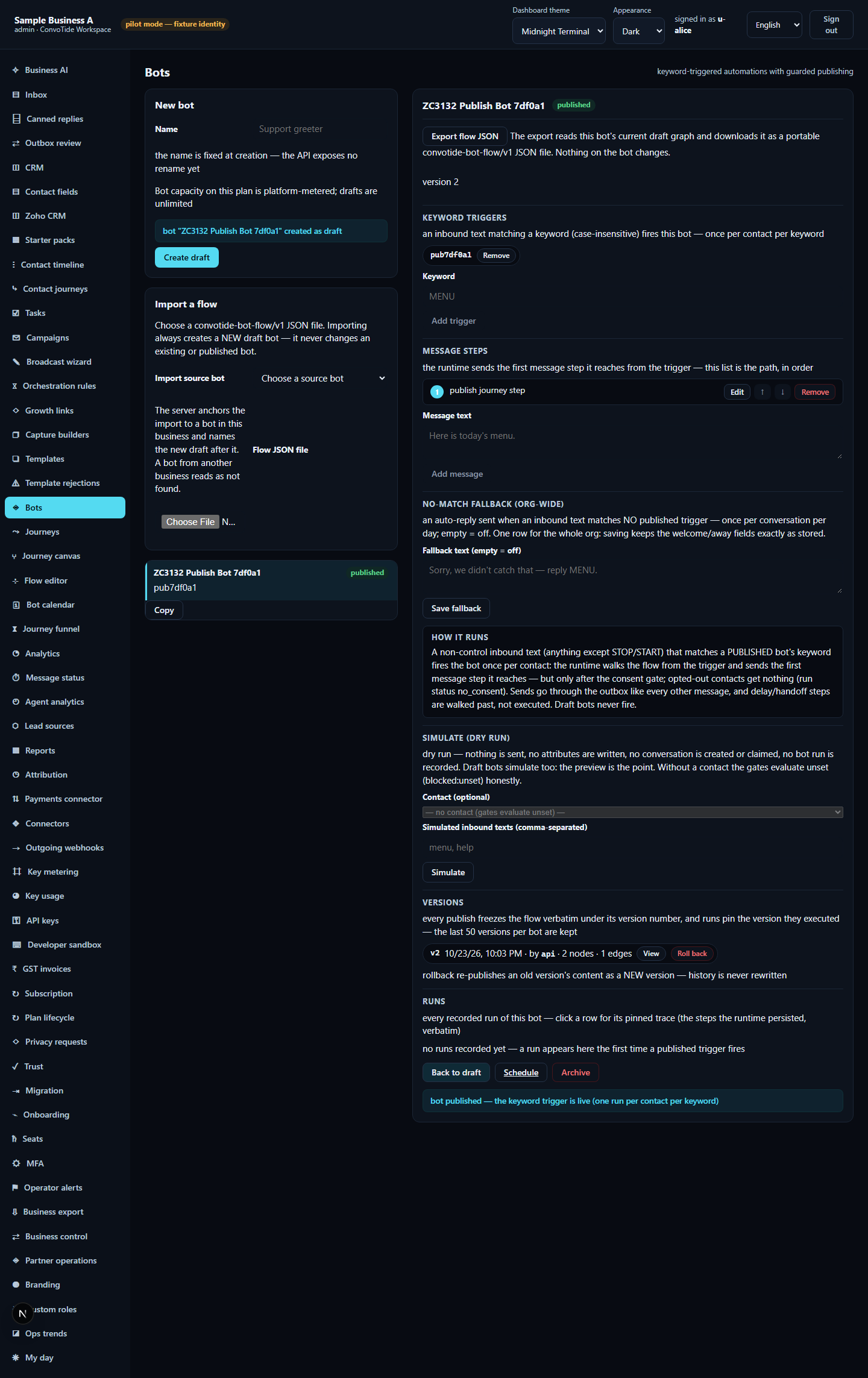
Reload the page and reopen the bot: the published state and your keyword are still there — saved on the server, not just on screen.
Step 4 — Set the no-match fallback reply
When an inbound text matches no published trigger of your business's bots, the product can send one fallback auto-reply instead of silence. The form is labelled No-match fallback (org-wide), and that scope matters: this is one shared fallback configuration for your whole business, not a setting of the individual bot you have open — editing it here changes the shared business fallback across your bots.
- With the bot open, find the configuration form (the No-match fallback (org-wide) row) and fill the fallback text field.
- Click the fallback form's save button. A confirmation appears, and the run verified the saved text in the database.
- Reload the page and reopen the bot — the form still shows your fallback text. (The interface notes the reply fires at most once per conversation per day.)
Evidence boundary: the run exercised saving the fallback text, its stored value and its reload persistence. The auto-reply actually firing on an unmatched inbound message was not exercised — and no message was sent at any point in these runs.
Step 5 — Publish a second version
- Click Back to draft. The badge returns to draft — publishing always reopens editing this way. (Remember: a draft bot stops answering until you publish again.)
- Add a second keyword trigger chip.
- Click Publish again. The ledger now shows a second entry — version 3.
Step 6 — Roll back, in two deliberate steps
Rollback takes an older saved version's content and re-publishes it as a new version — the ledger only grows; entries are not rewritten.
- In the version ledger (newest entry first), find the row of the version you want back — the oldest snapshot is the last row.
- Click its rollback button. The row expands into an inline confirmation asking you to confirm — the second step prevents accidental clicks.
- Confirm. What this run observed afterwards:
- The working copy ended with the single original keyword trigger
surviving on screen (and the database's trigger count read exactly one,
the authored one).
- The ledger gained a new entry attributed to the rollback (in the run:
version 4,
rollback:2), giving the full ledger2:api,3:api,4:rollback:2. - The bot's status read published afterwards — the rollback itself is a publish.
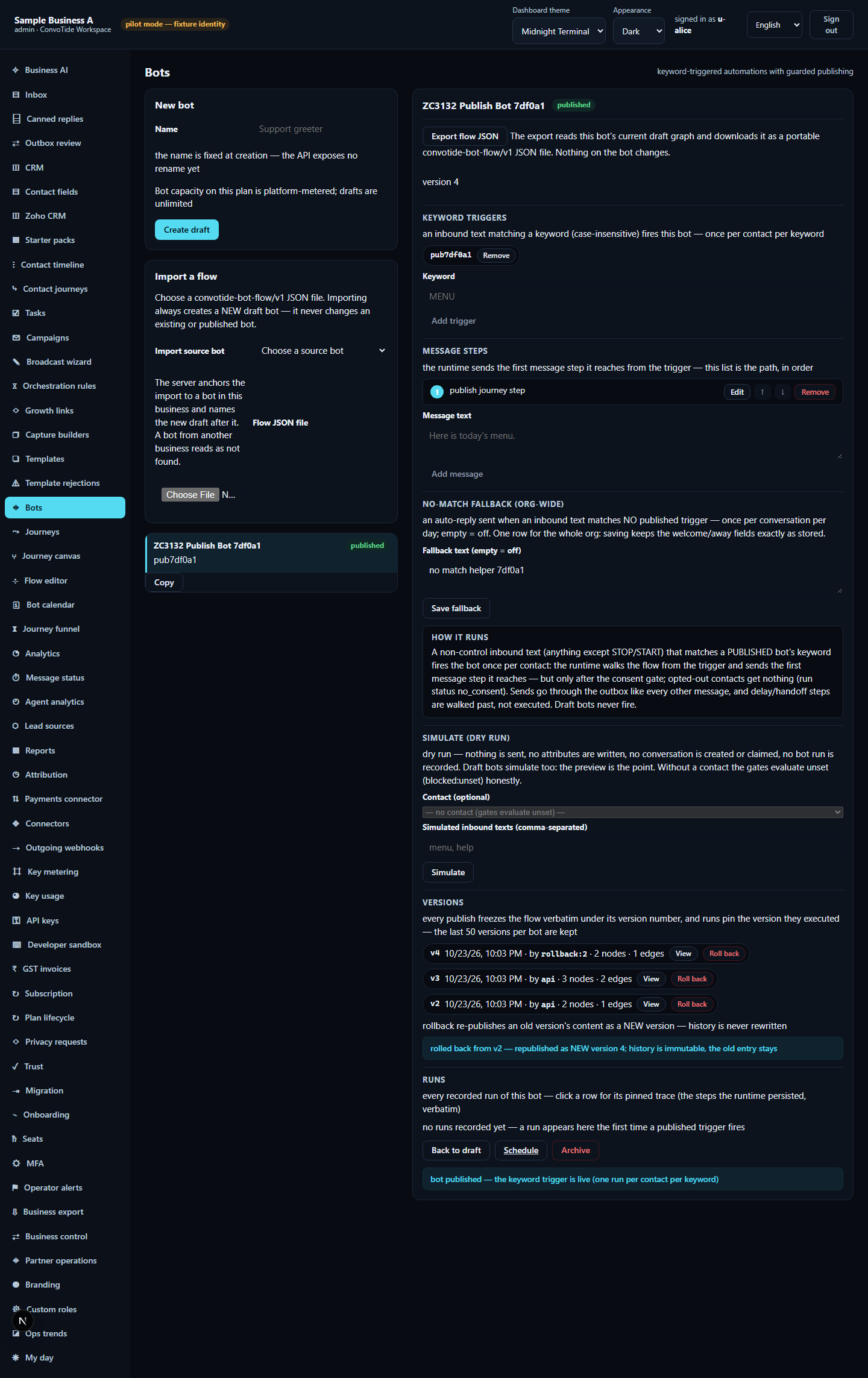
Worth deciding carefully: the version number only ever moves up — you cannot shrink history back. And note the honest limit of this evidence: whether every detail of the older version's graph (messages, other steps, connections) comes back byte-for-byte was not proven by this run — full snapshot and rollback graph fidelity remains open (see What this chapter does not claim). Before relying on a rollback for a complex flow, re-open the bot and check its content yourself.
Step 7 — Test safely in the simulator (dry run)
The editor includes a Simulate (dry run) panel. The panel states its own promise: dry run — nothing is sent, no attributes are written, no conversation is created or claimed, no bot run is recorded.
- In the simulator, pick a contact from the dropdown. Pick one that is opted in — the run demonstrated that without consent the dry run honestly reports a blocked/no-consent outcome instead of pretending a message would go out.
- Type the keyword you want to test in the simulated-inbound field.
- Click Simulate. The result shows the walked path step by step: the trigger step that matched your keyword and the message step that would send. The run verified each rendered step against the server's answer, and verified in the database that the number of outbound send intents was unchanged — nothing was sent.
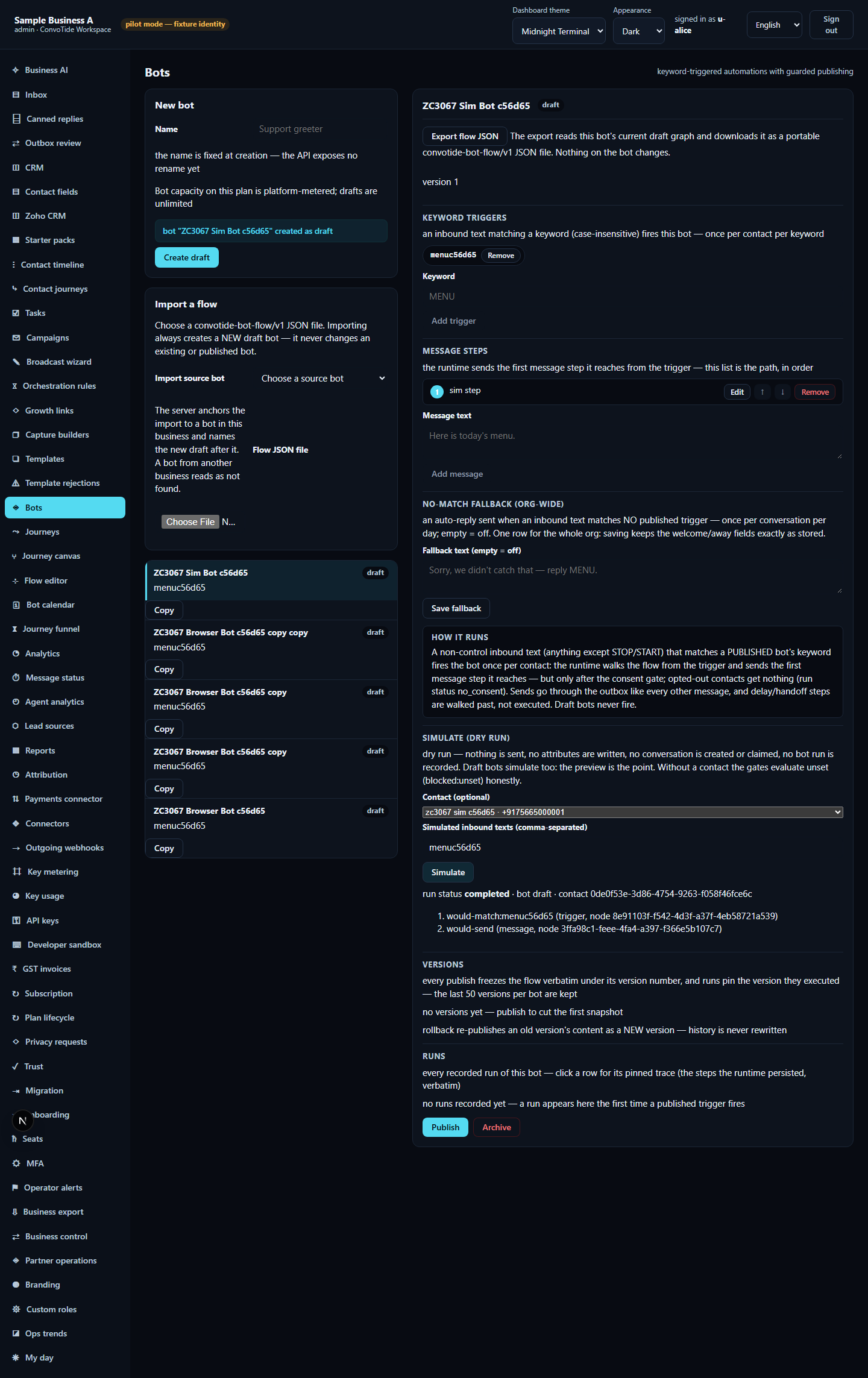
The 20-input limit
The simulator accepts at most 20 simulated inbound texts per run. Enter more (the run entered 21) and it refuses immediately with a TOO_MANY_INPUTS message — refused in the page itself, before any request is sent to the server (the run verified zero network calls). Shorten your input list and press Simulate again.
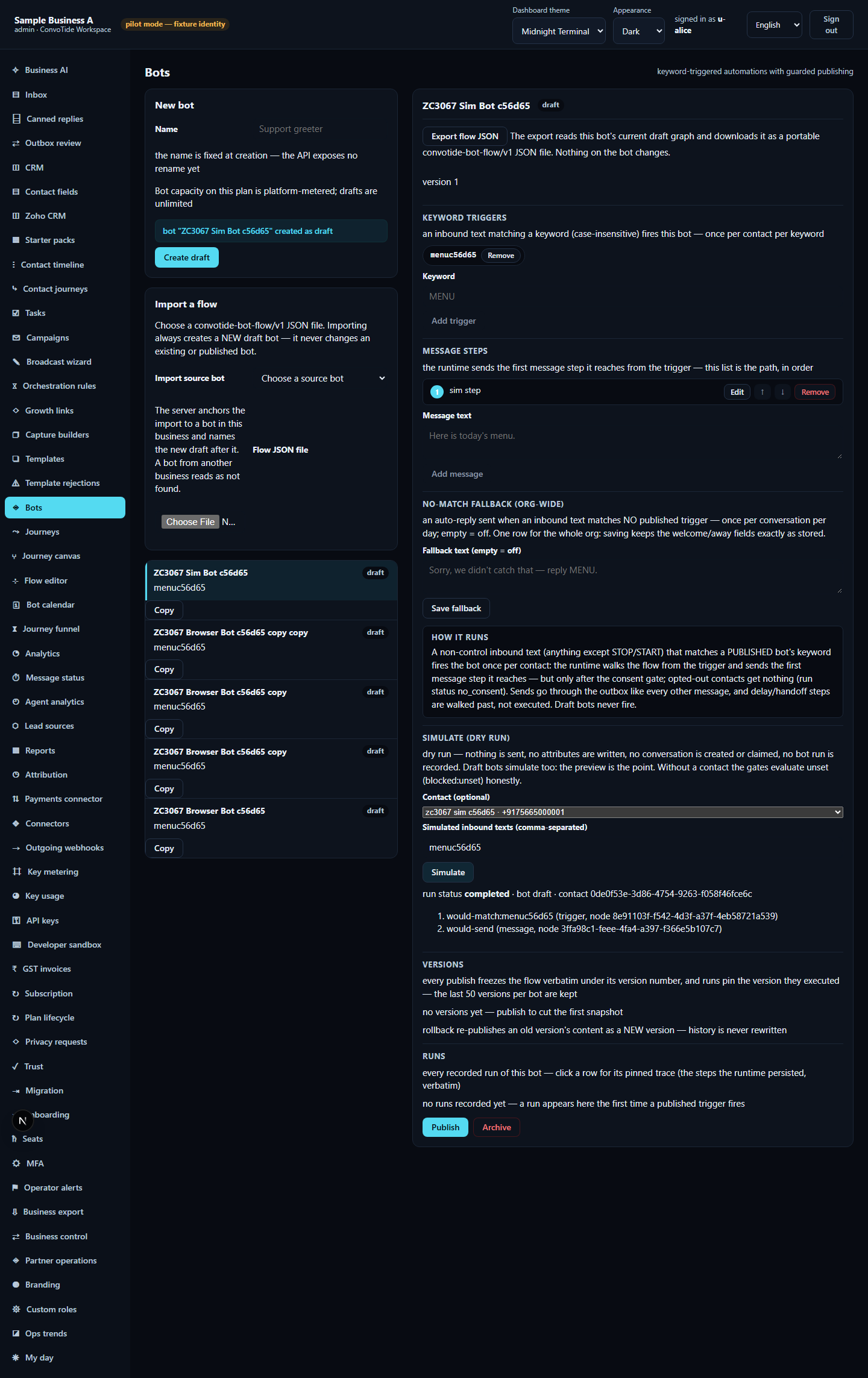
The retry walks the identical path as the first successful run — same trigger, same message step — and still sends nothing.
Interface words in all five languages
The interface ships with five languages. The evidence runs used English; the other values below are the product's own built-in translations at the tested revision, so you can recognise the same controls in your language.
| English (as tested) | हिन्दी | ਪੰਜਾਬੀ | मराठी | ગુજરાતી |
|---|---|---|---|---|
| Publish | प्रकाशित करें | ਪ੍ਰਕਾਸ਼ਿਤ ਕਰੋ | प्रकाशित करा | પ્રકાશિત કરો |
| Back to draft | ड्राफ़्ट पर वापस | ਖਰੜੇ 'ਤੇ ਵਾਪਸ | मसुद्यावर परत | ડ્રાફ્ટ પર પાછા |
| Simulate | अनुकरण करें | ਅਭਿਆਸ ਕਰੋ | अनुकरण करा | અનુકરણ કરો |
| Copy | कॉपी करें | ਕਾਪੀ ਕਰੋ | कॉपी करा | કૉપી કરો |
What this guide does NOT claim (kept honest)
- Full snapshot and rollback graph fidelity is OPEN. The runs proved the
publish guard, the v2/v3/v4 ledger metadata (versions and publishers), the
two-step rollback control, one surviving original keyword, the published
candidate status, the fallback save/reload and the simulator — not
that the frozen snapshot's full content equalled the authored graph, that
a rollback restored every message/edge/config byte-for-byte, or that
retained snapshots stayed content-unchanged. Independent review 3144
accepted exactly these bounded observables and kept the fidelity gap open;
a later source-lane remedy (
fe0d2b8ea) addressing it is received for separate review, not accepted here. - The runs exercised one keyword trigger plus one message step per publish, the fallback form, version ledger, two-step rollback and the simulator. Other builder capabilities (button choices, question steps, CRM actions, API request steps, human handoff, and the rest of the 17-step palette) exist in the product but were not exercised in these runs and are not described here.
- Carousel, location-request and human-handoff steps are provider-gated or conditional and had no evidence runs.
- Commercial-tier entitlement and the 5–20 active-bot quotas were not enforced in these runs (the synthetic test setup used an uncapped allowance); see the capacity guide for the plan-limit refusals that were separately accepted.
- No live WhatsApp/Meta message was sent or delivered; all data is simulated test data.
- This guide does not claim whole-product completion, all-function bot acceptance, Main-built acceptance, or equivalence with any other provider set.
Evidence record (kept for honesty). From the completed ZC3132 bot lane —
run publish-run2 (23 October 2026, 1 of 1 passed, the D17.F01 journey)
of zc3132-bot-publish-lifecycle-real.test.ts, and the simulator case of
run browser-run4 (3 of 3 passed) of
zc3067-bot-copy-real-browser.test.ts, both executed on the real app with a
real browser, the real API and an isolated throwaway database (a local
candidate — not Main-built, not live). Lane evidence ledger:
C:/CT-ZCODE3132/lane-bot-cont-ledger.json; screenshot checksums in
assets/publish-copy-ASSETS-MANIFEST.json.
Current standing: at authoring time (23 October 2026) Chief acceptance of
the lane was open. Independent review
CT-BOT-REVIEW3144 has since accepted
the bot local candidate at HEAD 23aecb51afdac01e67ae25d5e07f76c432ed8d07
for the F1–F3 remedies and these bounded journeys — the publish guard, the
version-ledger metadata (2:api, 3:api, 4:rollback:2), the two-step rollback
control, the surviving keyword, the published status, the fallback
save/reload and the simulator — while keeping full frozen-snapshot and
rollback graph fidelity OPEN. A later source-lane remedy (fe0d2b8ea)
addressing that fidelity gap is received for separate review and is not
retrospectively accepted here. The guide claims only what the recorded
passing runs show.